

Slotwise is a free WordPress plugin that adds a “Book a meeting” button to your website. Visitors pick a day and time in a frosted-glass window, enter their details, and both of you get an email with a calendar invite. No monthly fee, no third-party account, and every word and colour is editable from your dashboard.
Version 1.5.0 · needs WordPress 6.0+ and PHP 7.4+ · free, GPL licence

In this guide
- Install in two minutes
- What your visitors see
- Put the button anywhere
- The bookings dashboard
- Calendars and teams
- Content: change every word
- The booking form
- Availability and booking rules
- Emails and reminders
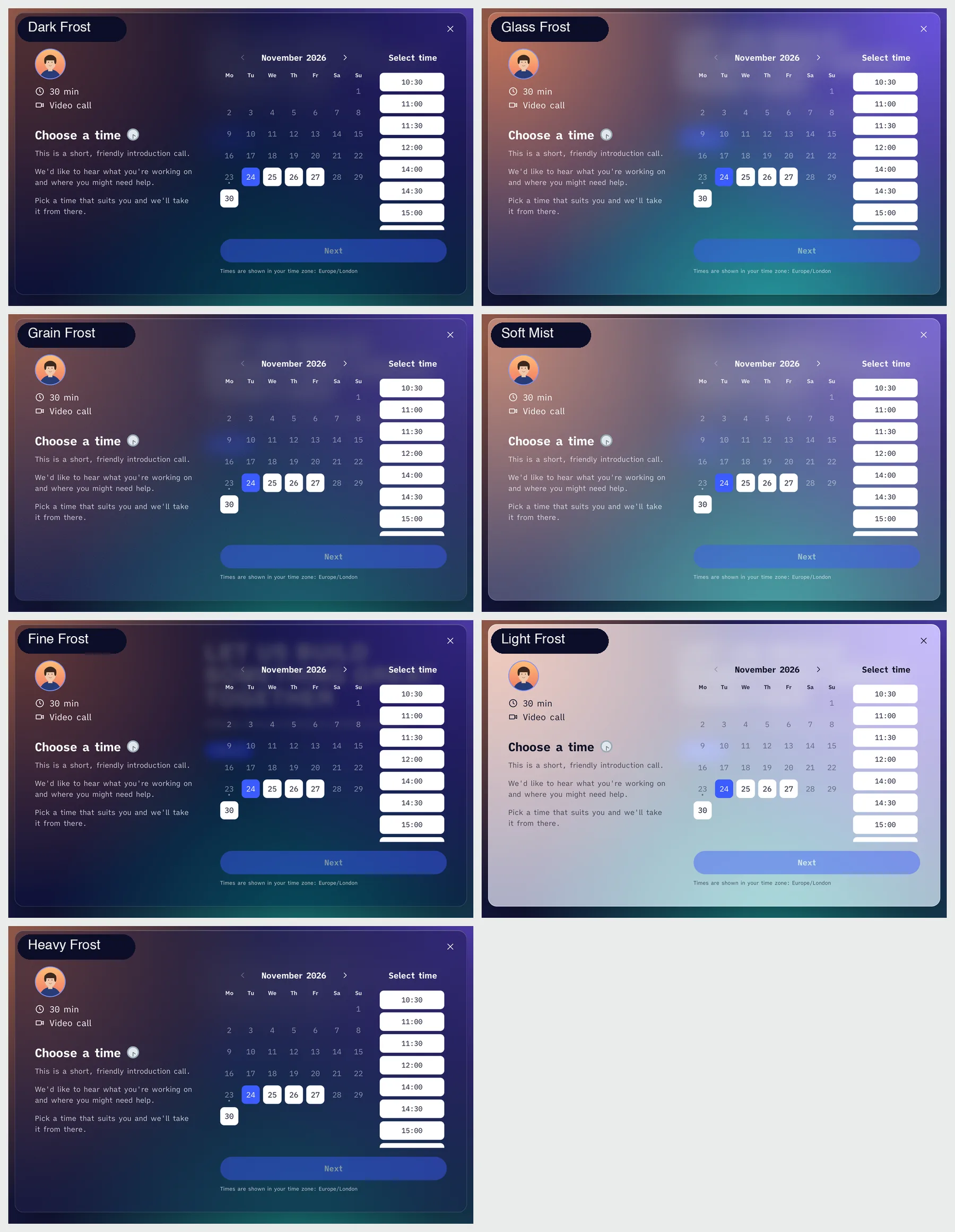
- Design: seven glass styles
- Advanced, protection and help
- Questions
Why we built Slotwise
Most booking tools are either a paid subscription or a widget that sends your visitors off to someone else’s website. We wanted a booking window that lives on our own site, matches our design, keeps the data in our own WordPress, and is simple enough that a client can run it without help. We use it on contentscape.co.uk and are releasing it for anyone to download.
- Free to download and use on as many sites as you like (GPL licence).
- Your data stays on your site. Bookings are stored in your own database, with WordPress privacy export and erase built in.
- No code. Everything below is changed from Settings screens.
Install in two minutes
Download the zip with the button above. In WordPress go to Plugins → Add New → Upload Plugin, choose the zip, click Install Now, then Activate.

Once activated, Slotwise appears in your admin menu with quick links on the Plugins screen. You do not need to configure anything to try it: it starts with Monday to Friday opening hours and a ready-made glass style.

Quick start
- Open Slotwise → Availability and set the days and hours you take meetings.
- Open Content and add your name, photo and meeting link.
- Add the shortcode
to any page, or link any button to#schedule. - Press Preview booking window at the top of the Slotwise screen to see it exactly as visitors will.
What your visitors see
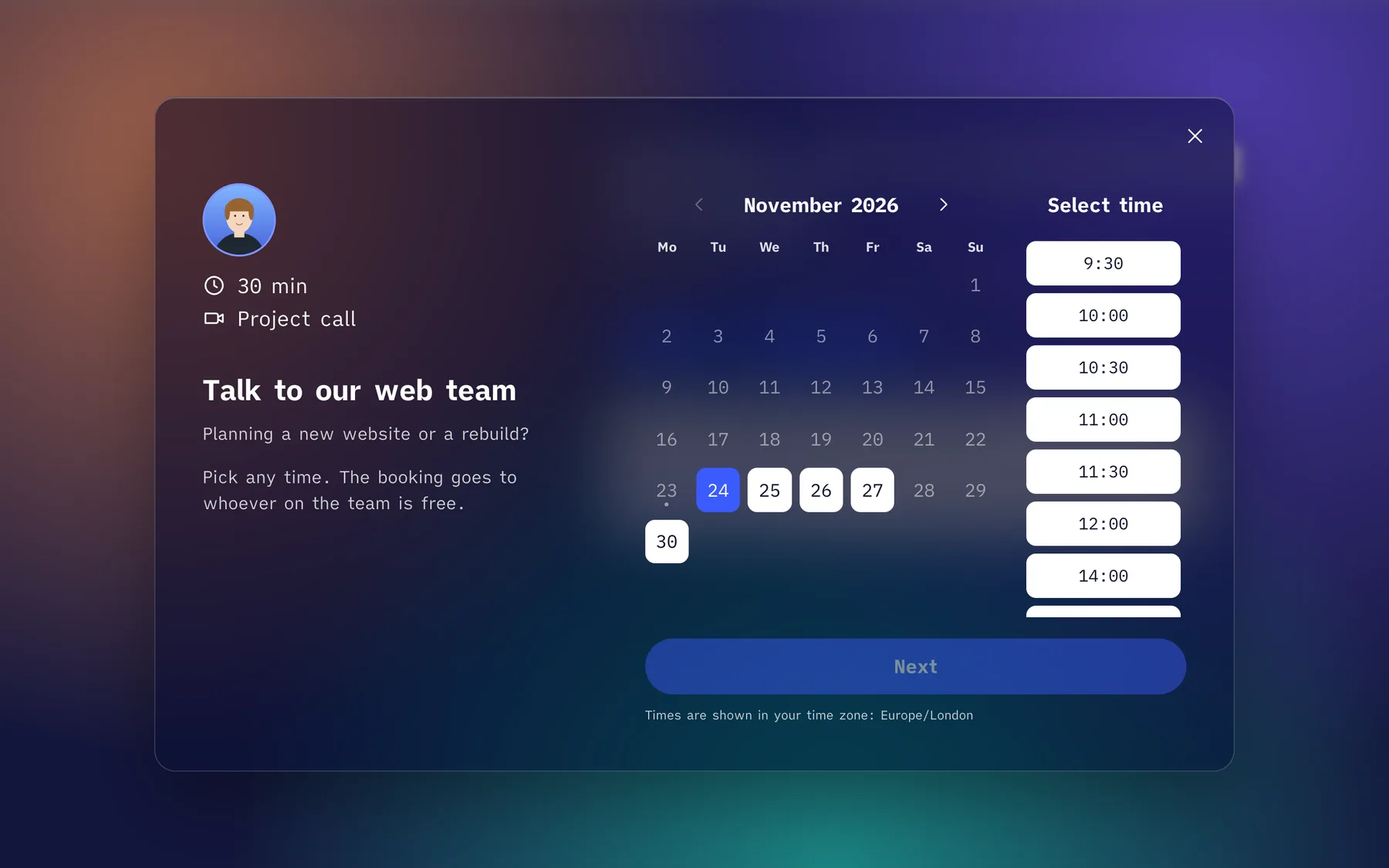
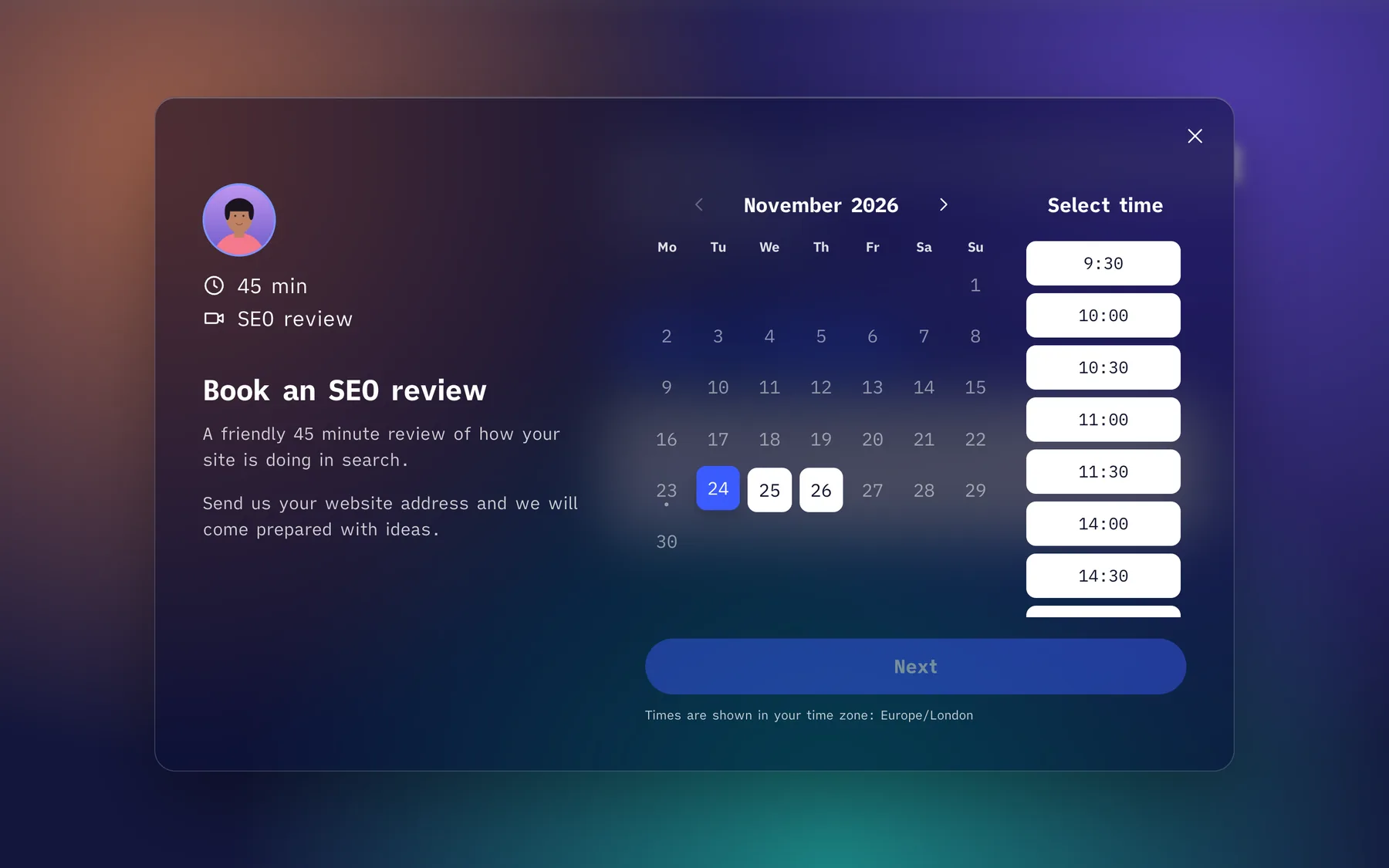
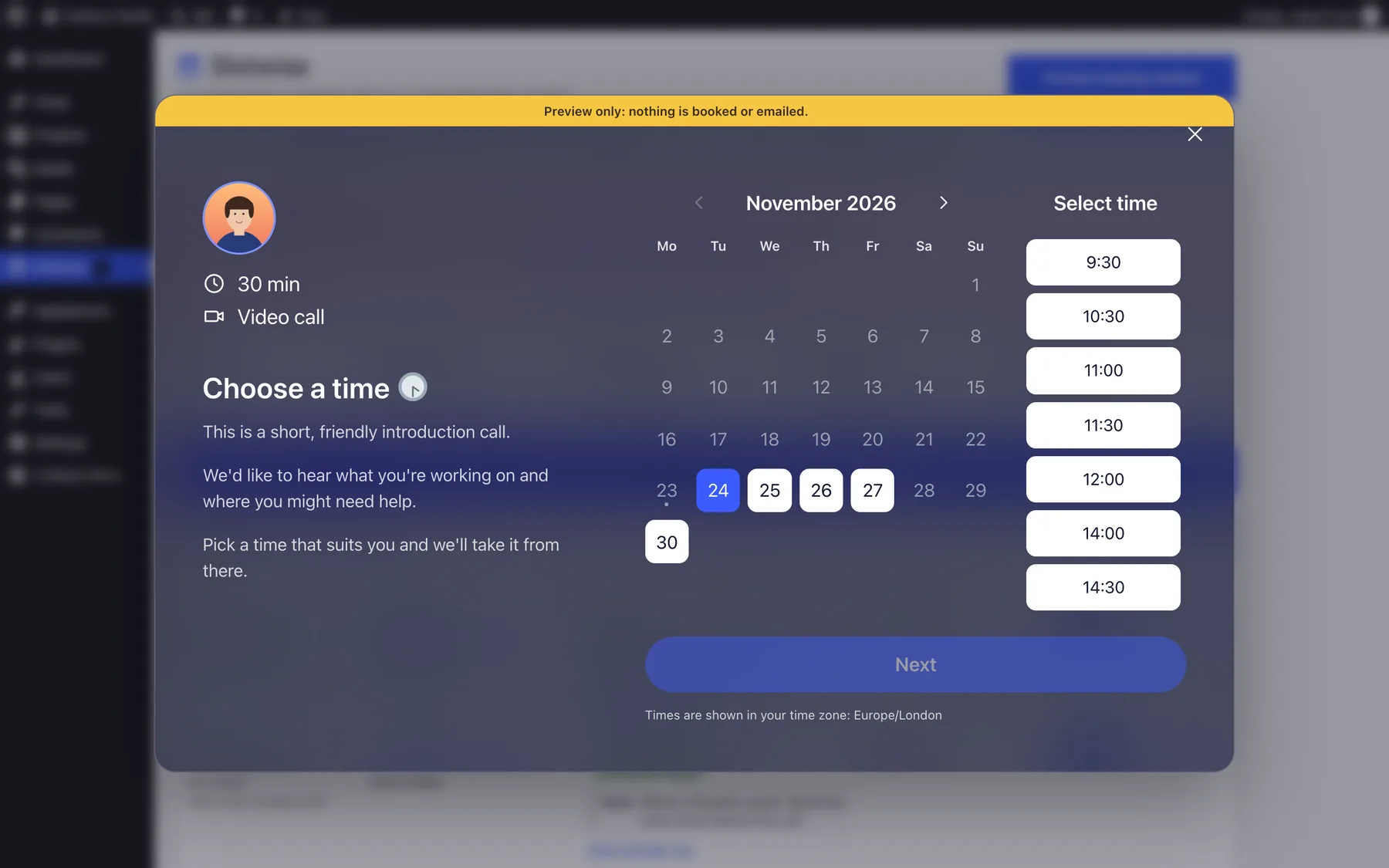
Visitors never leave your page. The button opens a glass window over it, with your photo, the meeting length and type, and a calendar. Days you are free are highlighted; everything else is quietly greyed out.
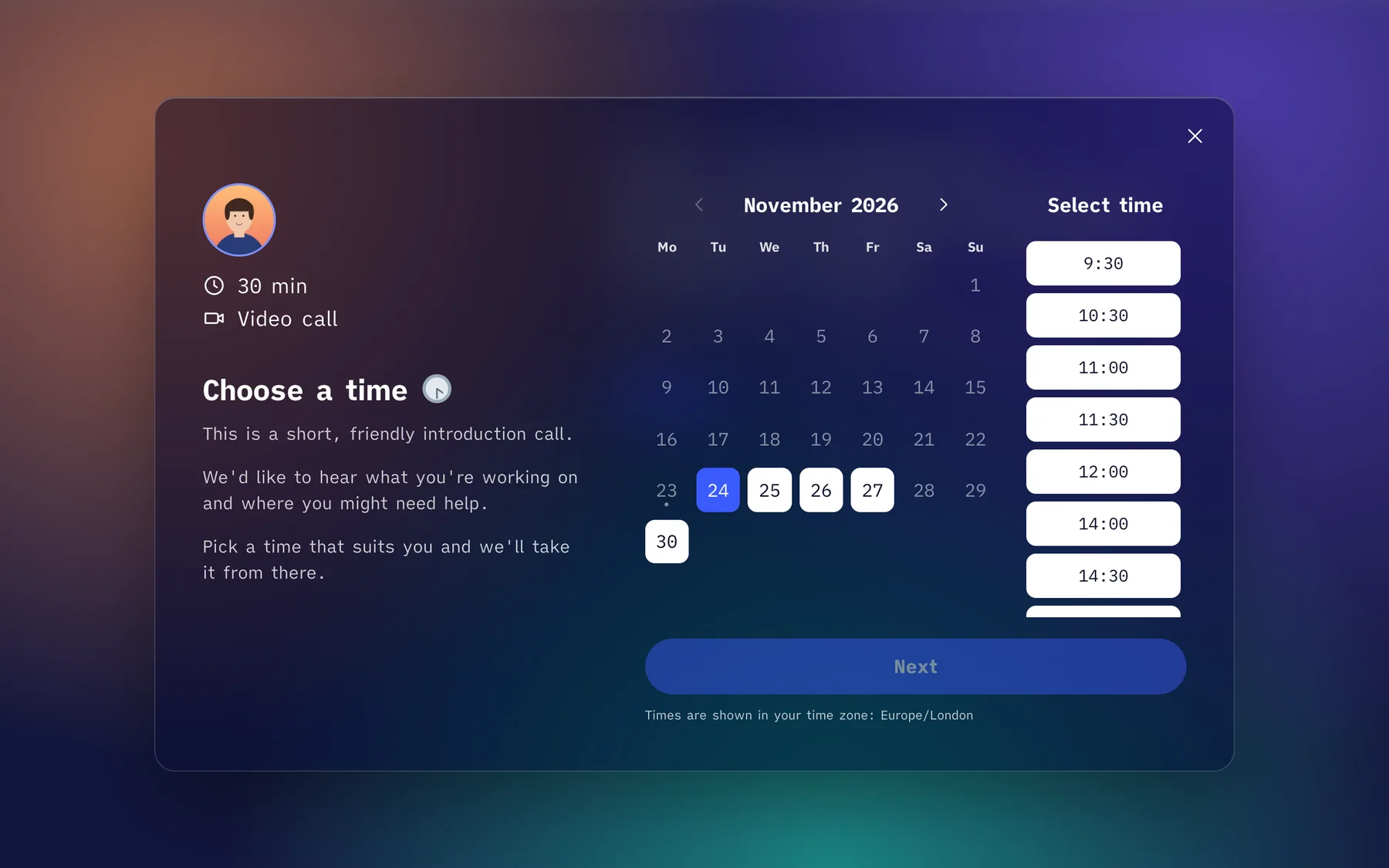
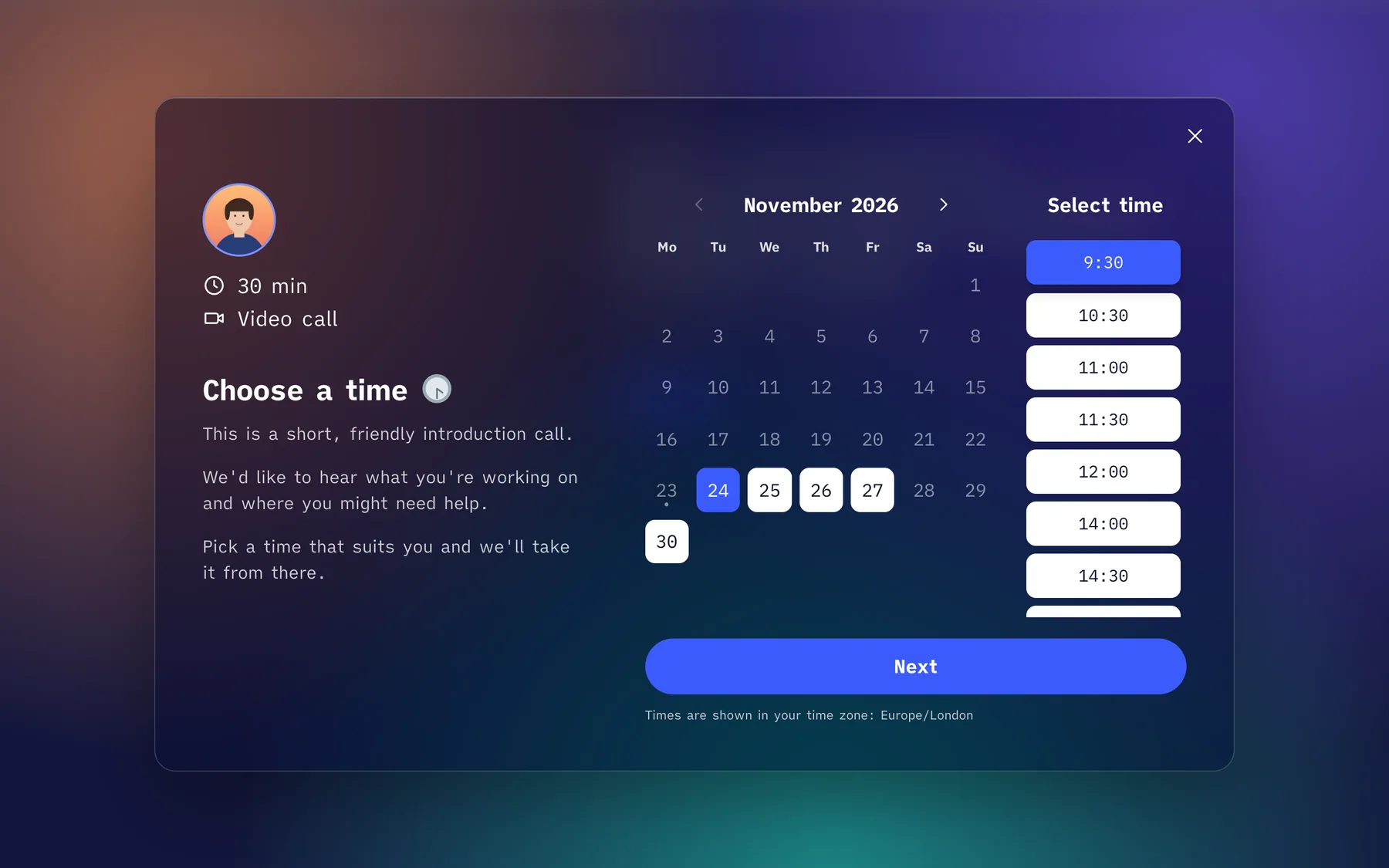
Pick a day and the available times appear. Select one and the Next button becomes active.
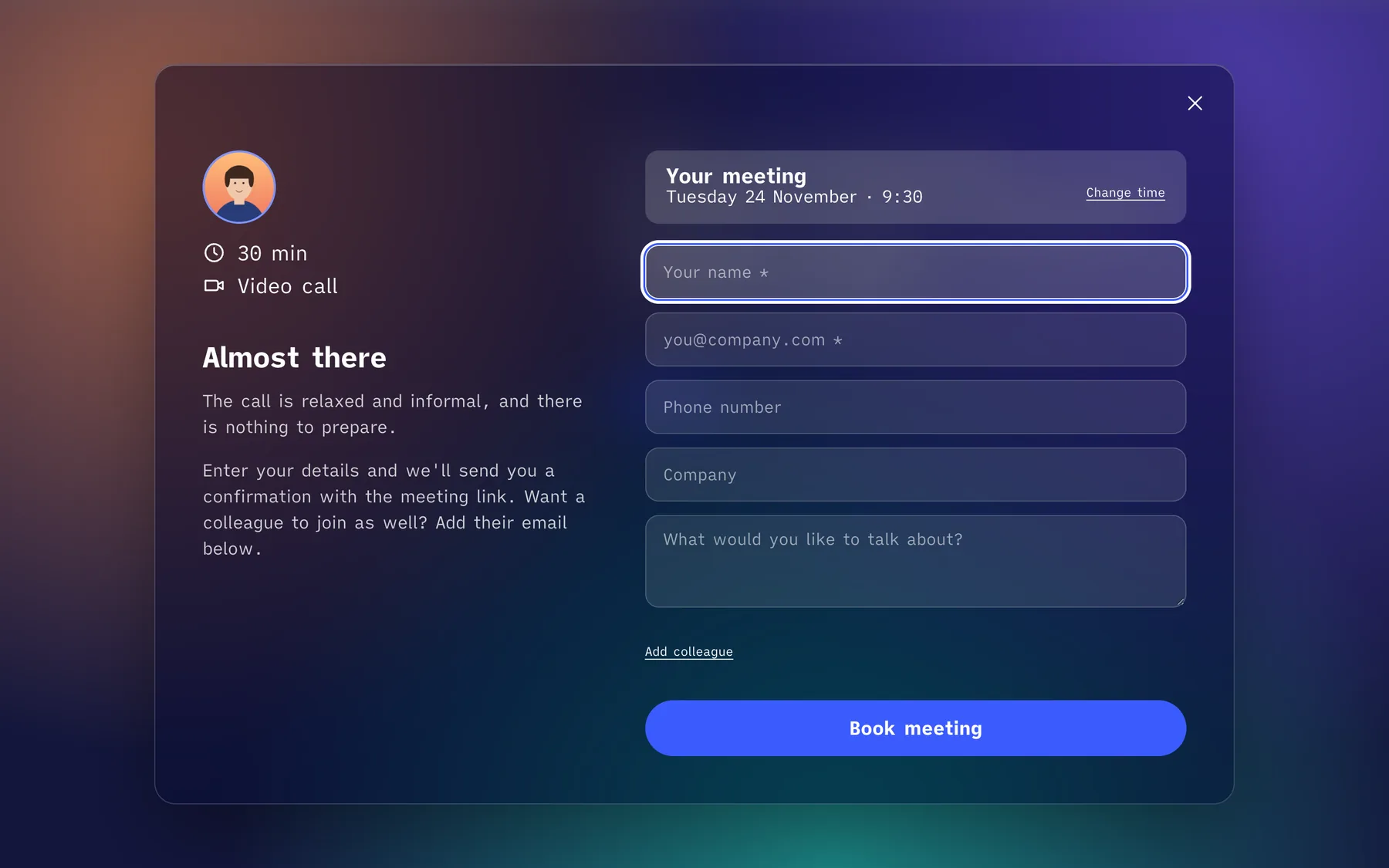
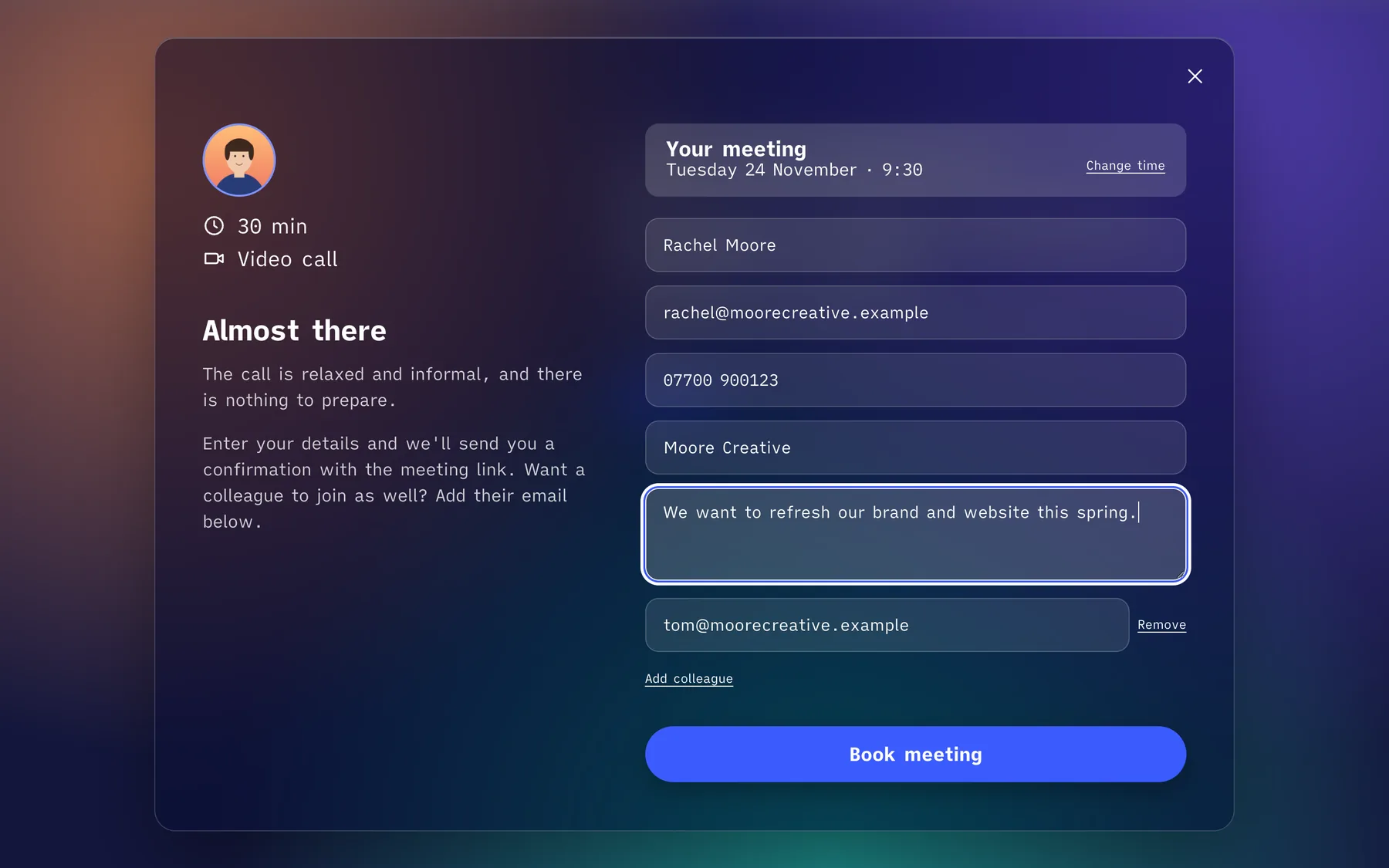
Step two asks for their details. The chosen day and time stay pinned at the top with a Change time link, so nobody gets lost.
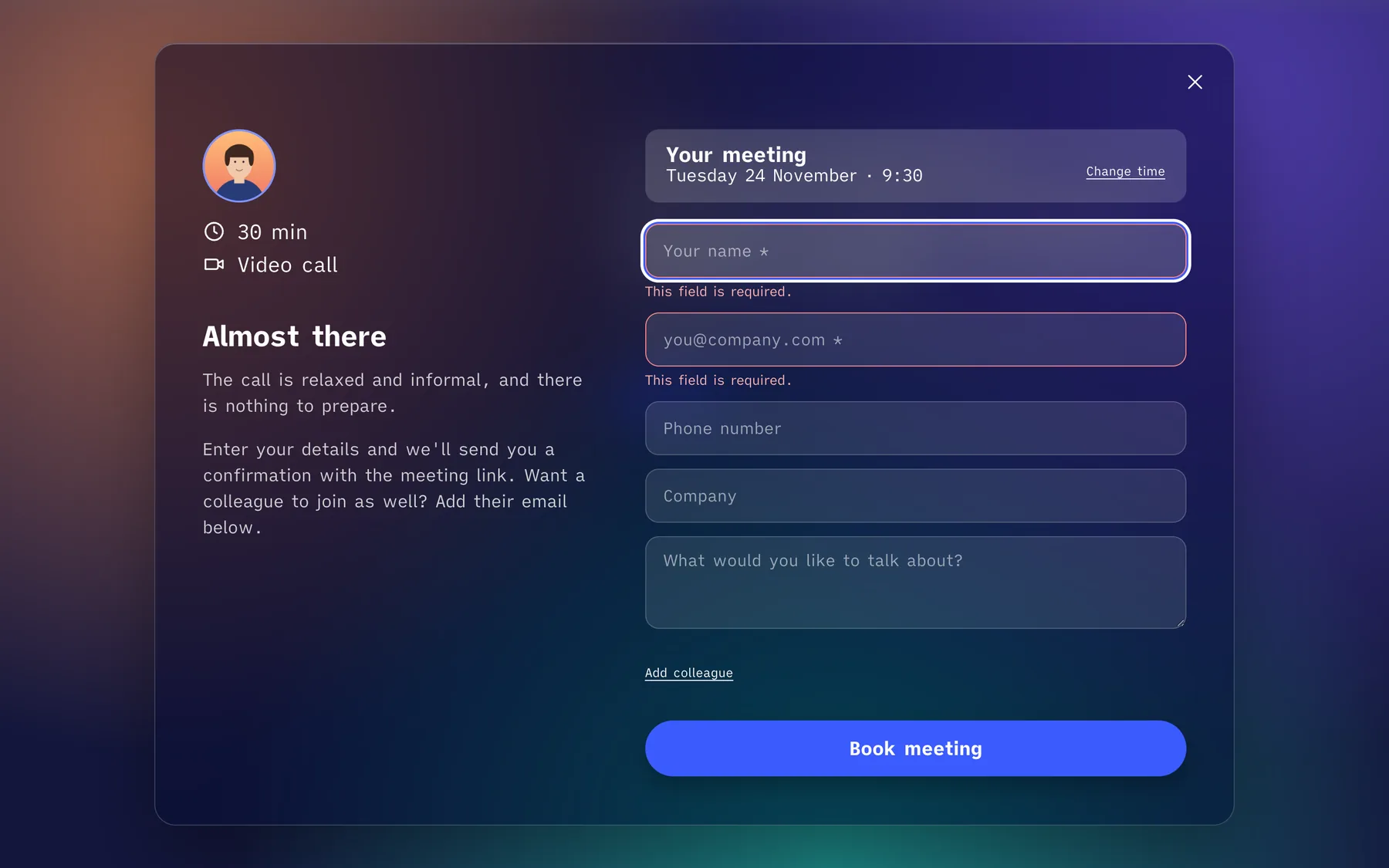
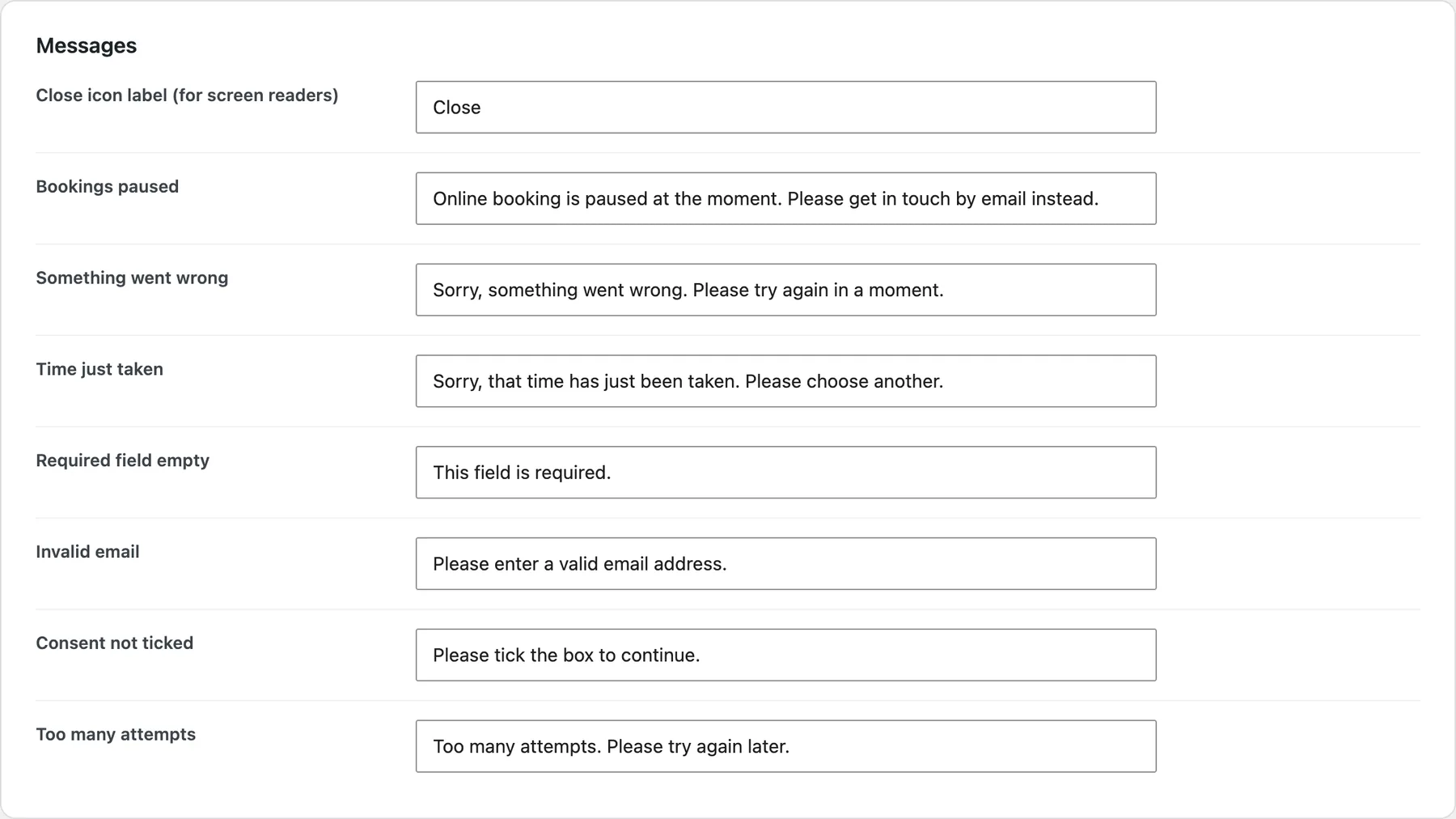
Mistakes are caught in plain language, next to the field that needs fixing.
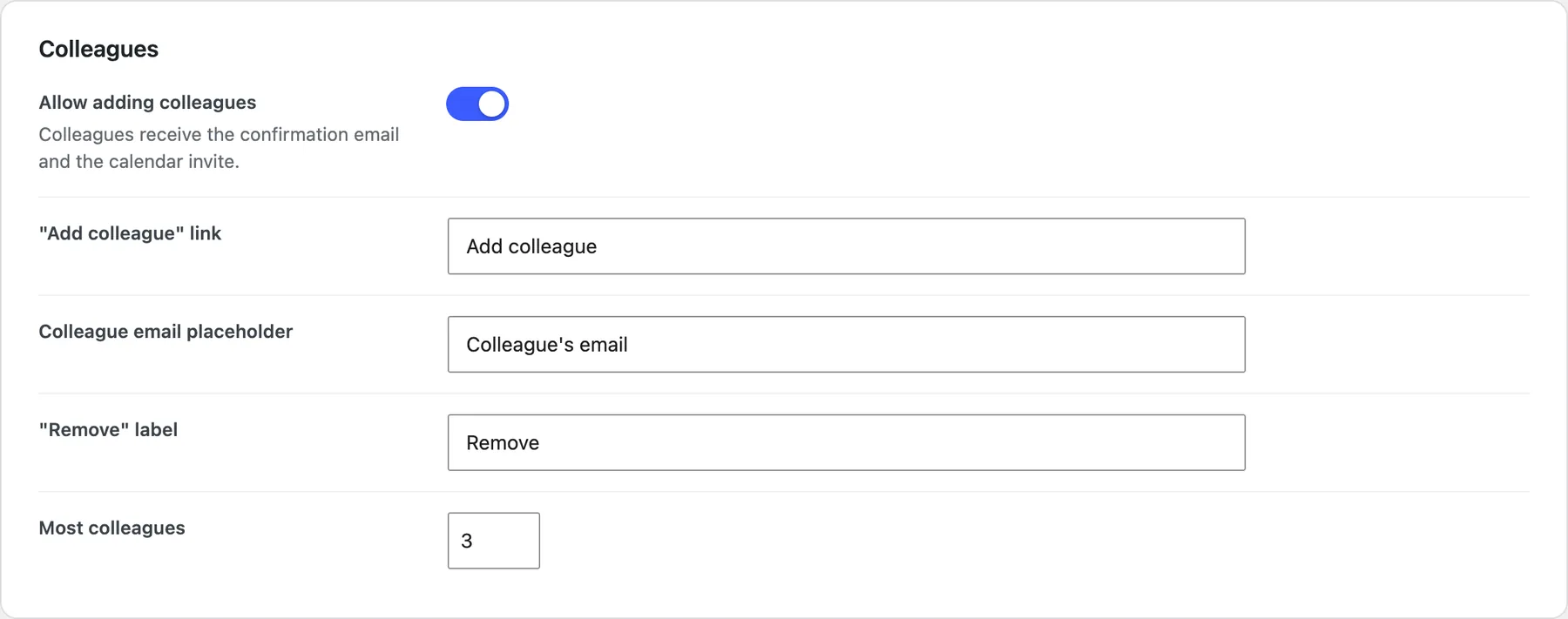
Visitors can invite a colleague by adding their email address. The colleague receives the confirmation too, with the calendar invite.
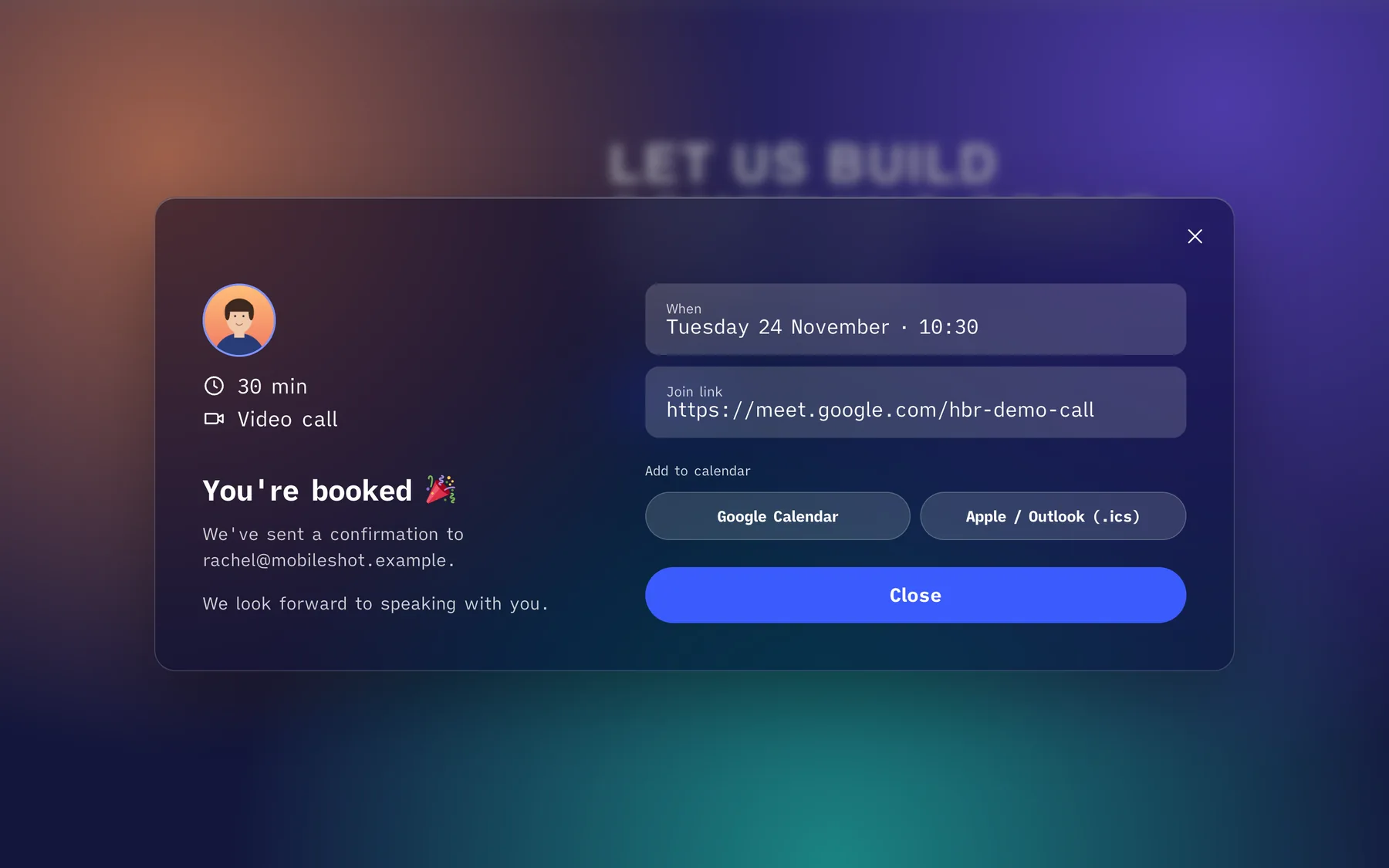
When it is done, the visitor sees a clear confirmation with the meeting link and one-click buttons for Google Calendar and Apple or Outlook (.ics).
Designed for phones first
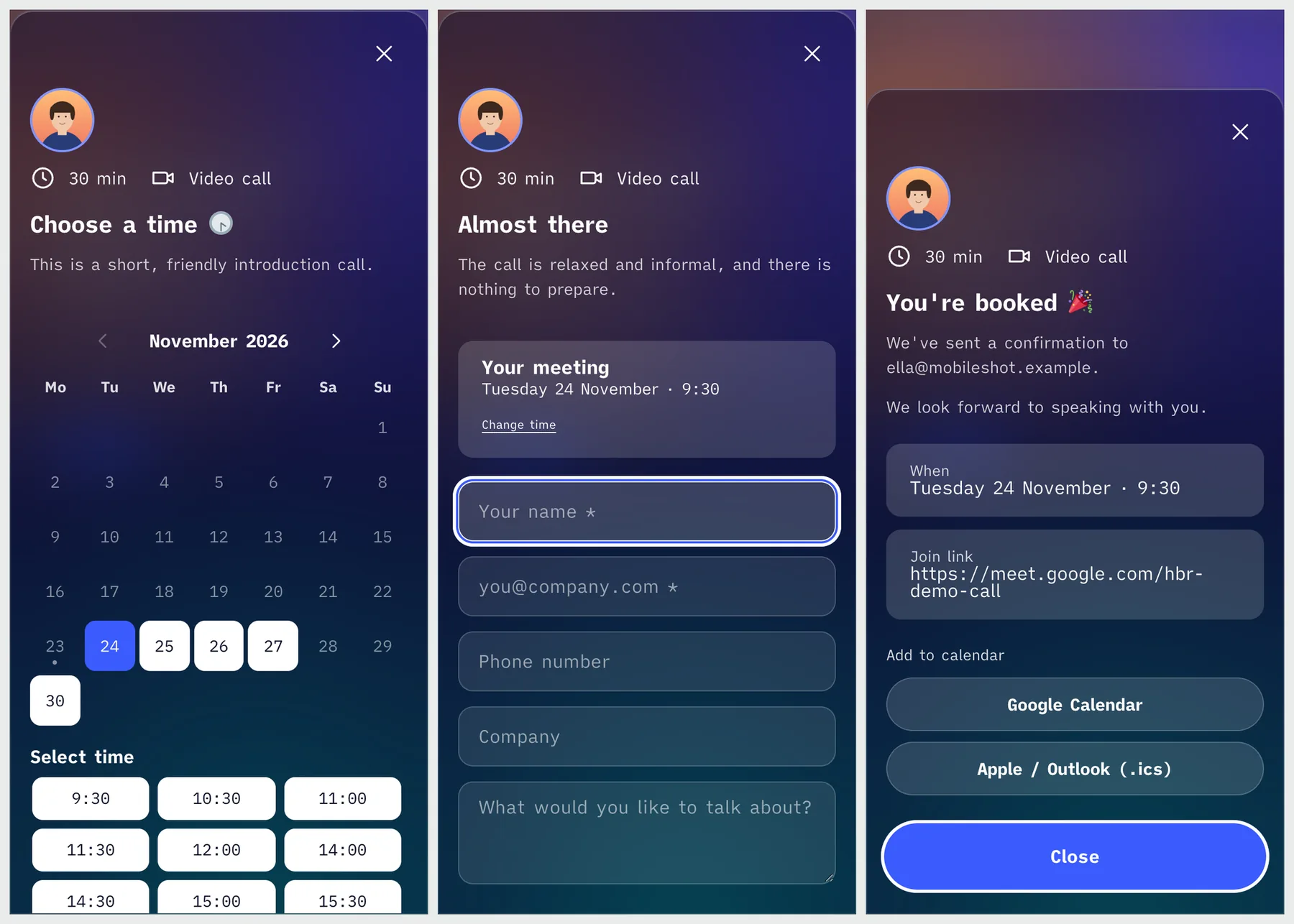
On a phone the window becomes a full-height sheet, the calendar and times stack, and the buttons are large enough for thumbs. Motion is smooth and respects the “reduce motion” setting.
- Keyboard friendly, with focus kept inside the window and returned when it closes.
- Screen reader labels throughout.
- Times are converted to the visitor’s own time zone; your hours stay in yours.
Put the button anywhere
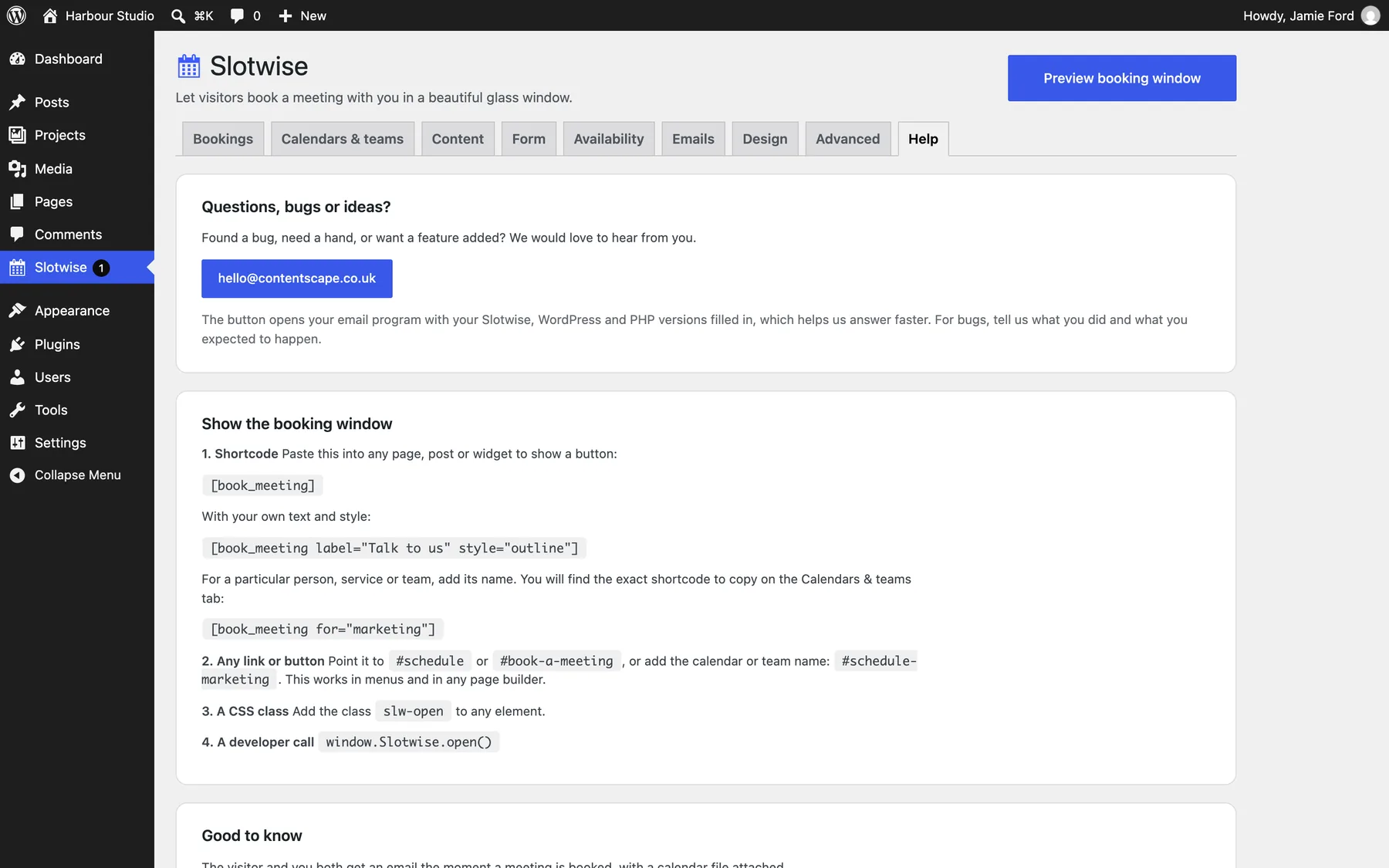
There are four ways to open the booking window, and they can be mixed on the same page:
- Shortcode:
, or with your own text and style:. - Any link or button: point it to
#schedule. This works in menus and page builders such as WPBakery, Elementor and Gutenberg. - A CSS class: add
slw-opento any element. - A developer call:
window.Slotwise.open().

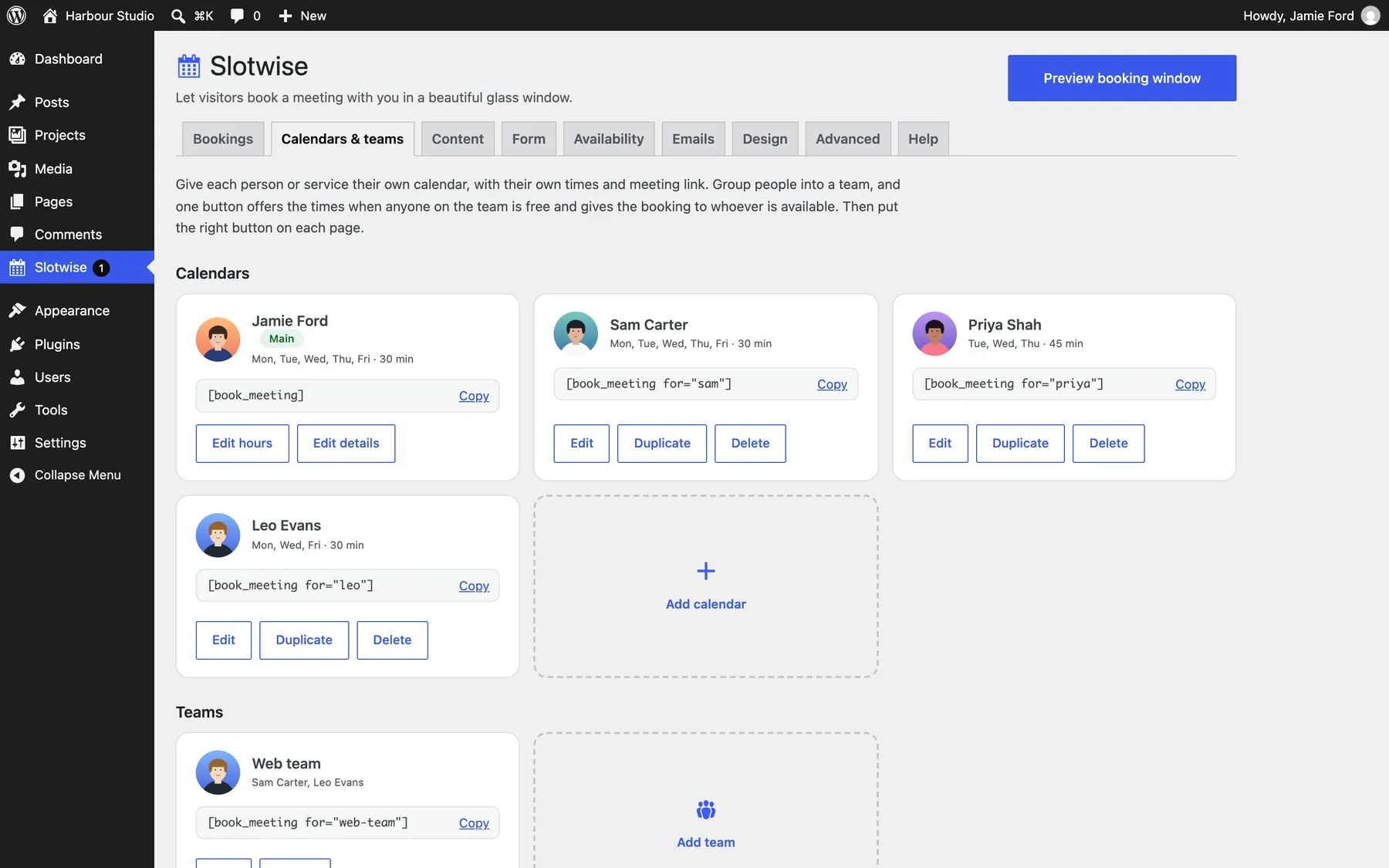
Every calendar and team has its own shortcode, so you can put a different person or service on each page:
Pause bookings
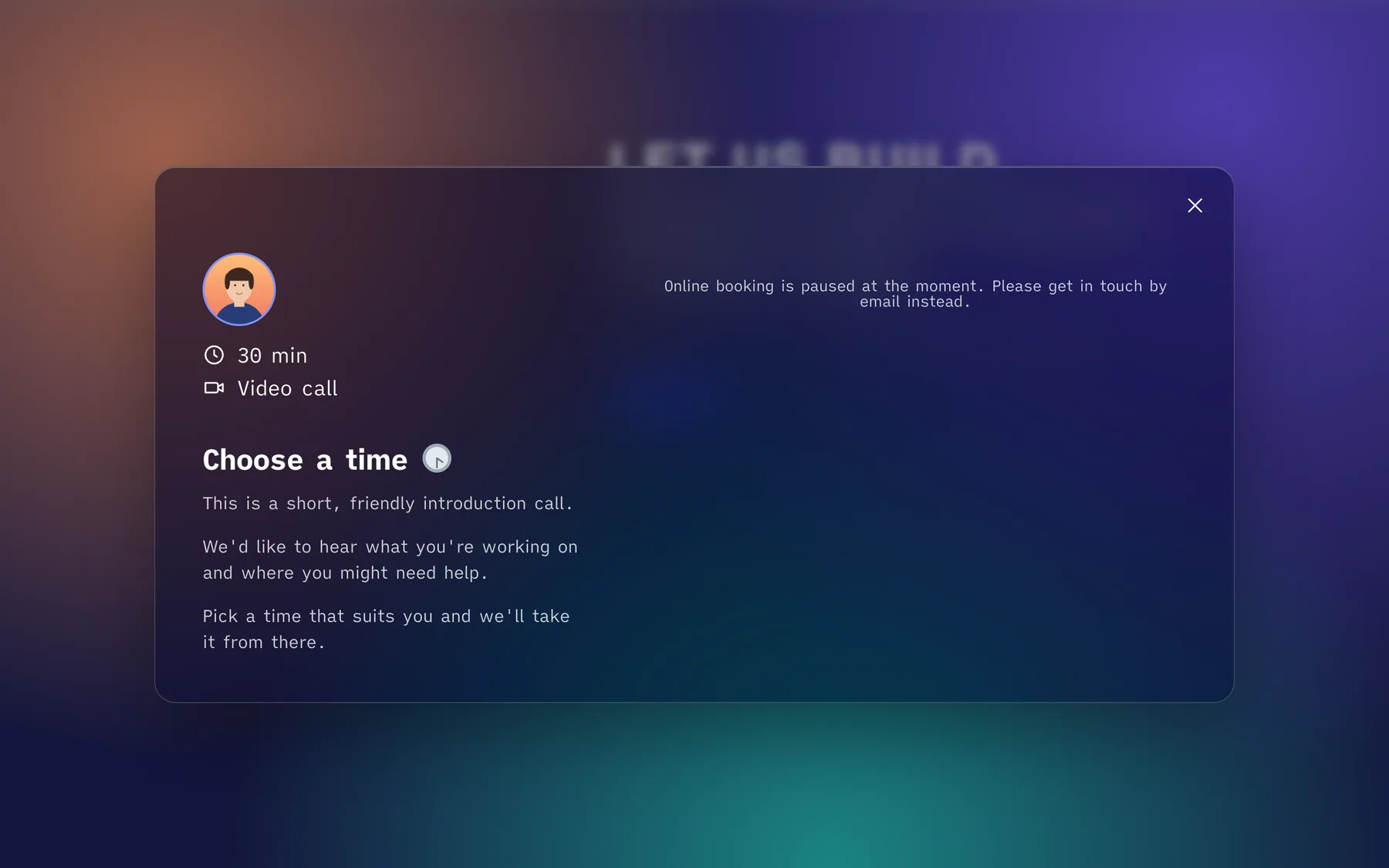
Going on holiday? One switch pauses new bookings and shows a polite message instead of the calendar. Existing bookings are not affected.
Visitors can cancel themselves
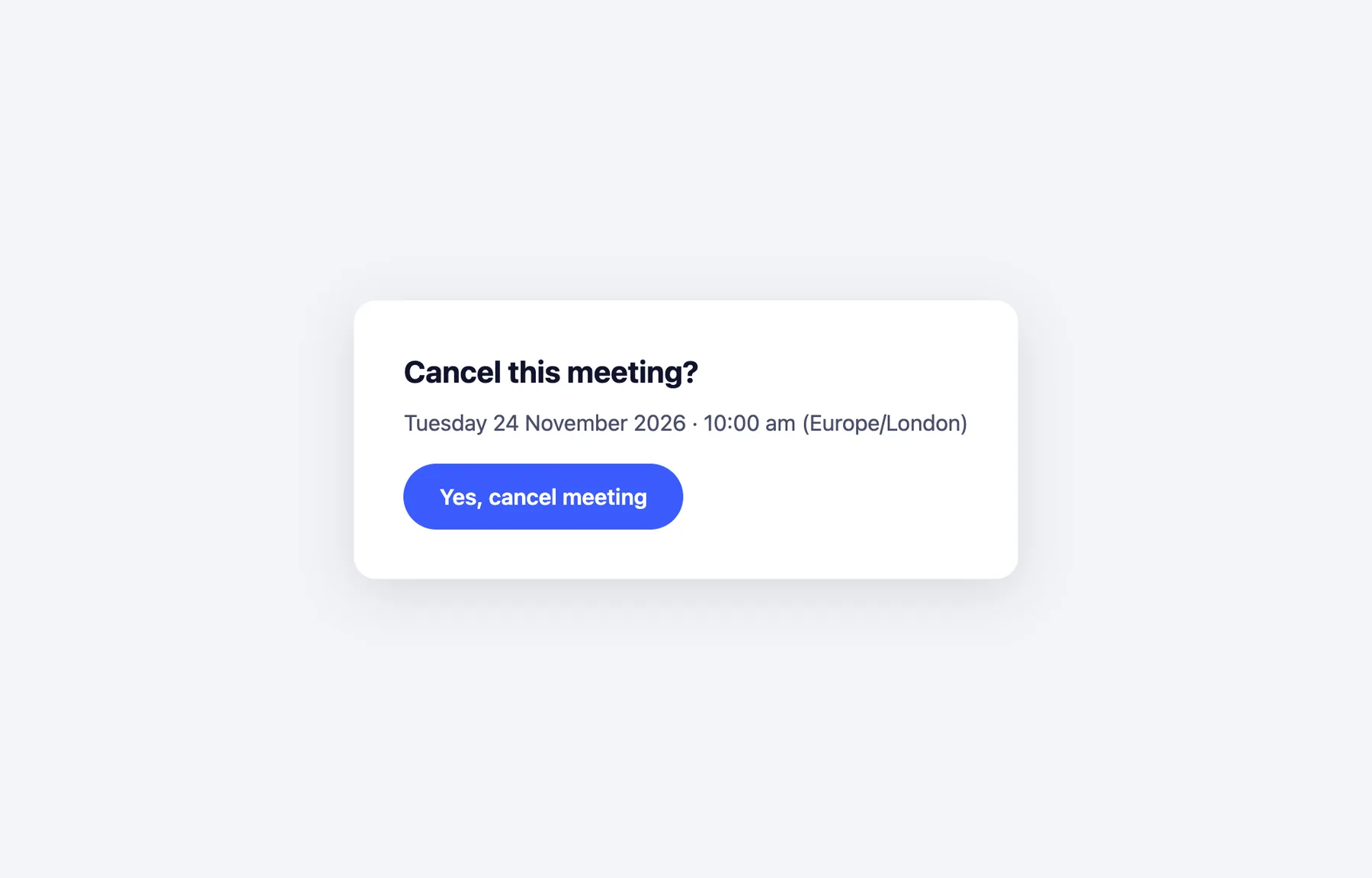
Every confirmation email has a private cancel link. The visitor lands on a simple page, cancels with one click, and you are told straight away.
The bookings dashboard
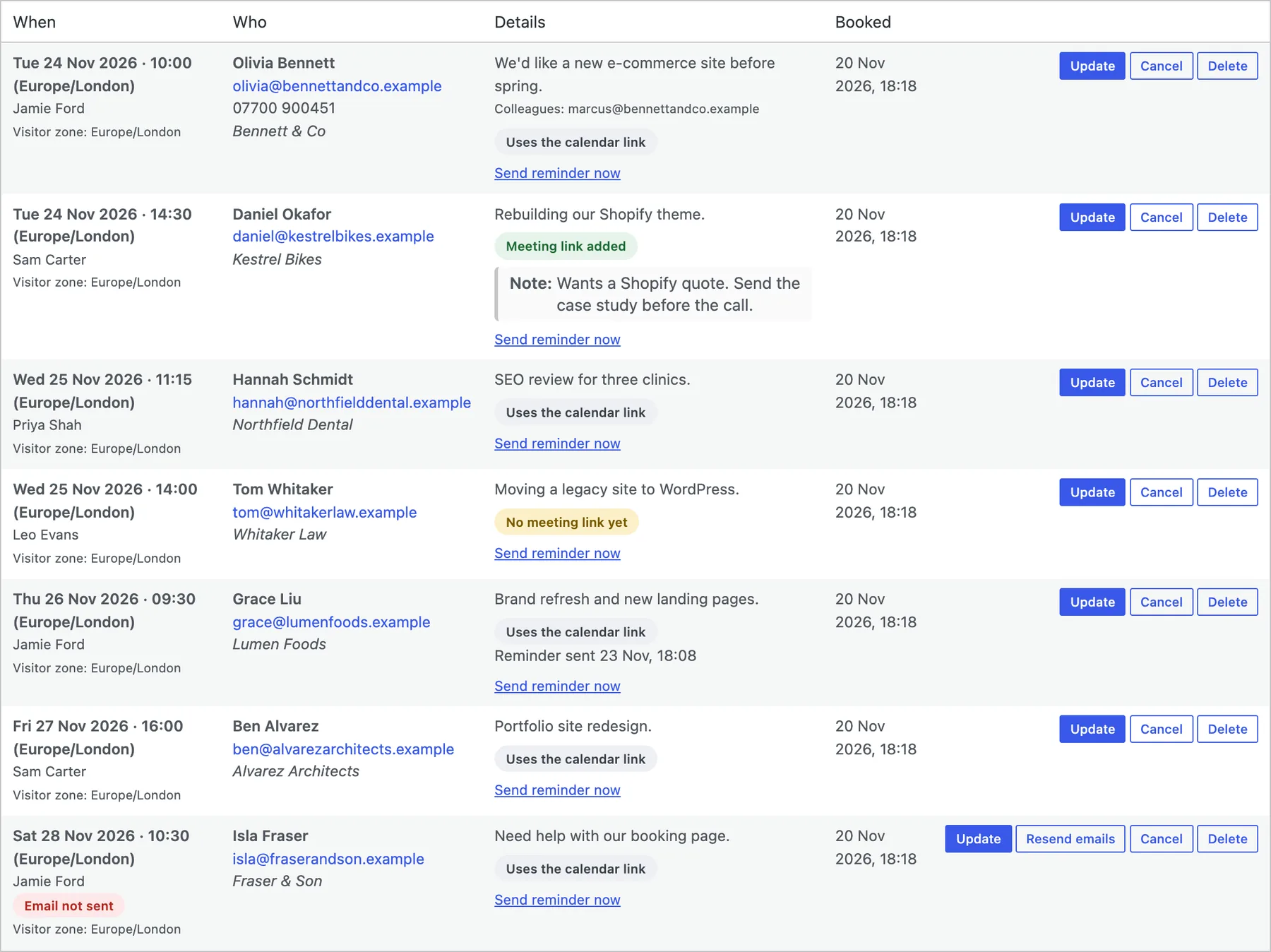
The first tab is your control room: bookings today, in the next seven days, upcoming, completed and cancelled, with your very next meeting highlighted above the list.
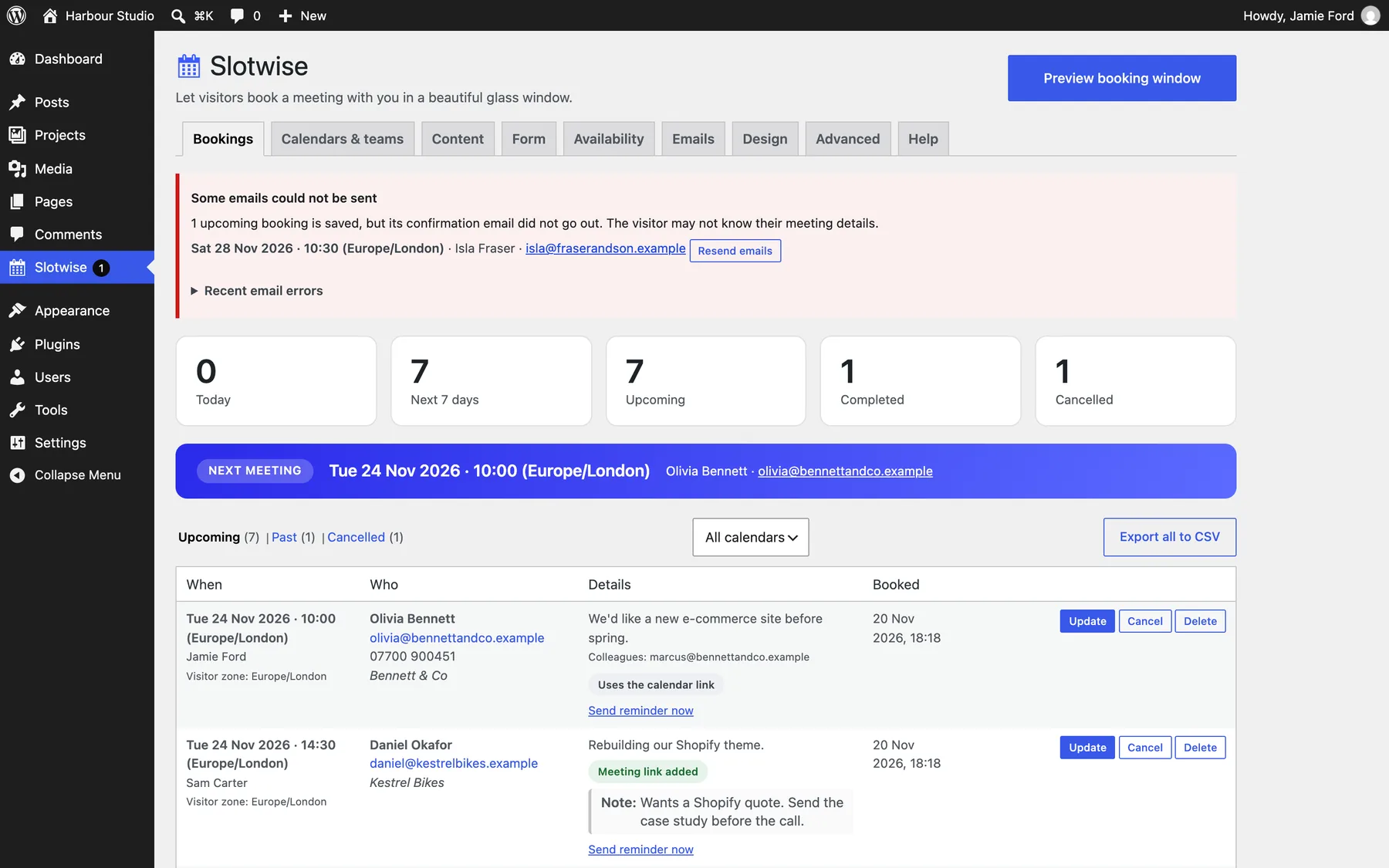
Below it is every booking with who, when, what they wrote, which calendar or person it is with, and quick actions: Update, Cancel (the visitor is emailed) and Delete. Filter by Upcoming, Past or Cancelled, or by calendar, and Export all to CSV.
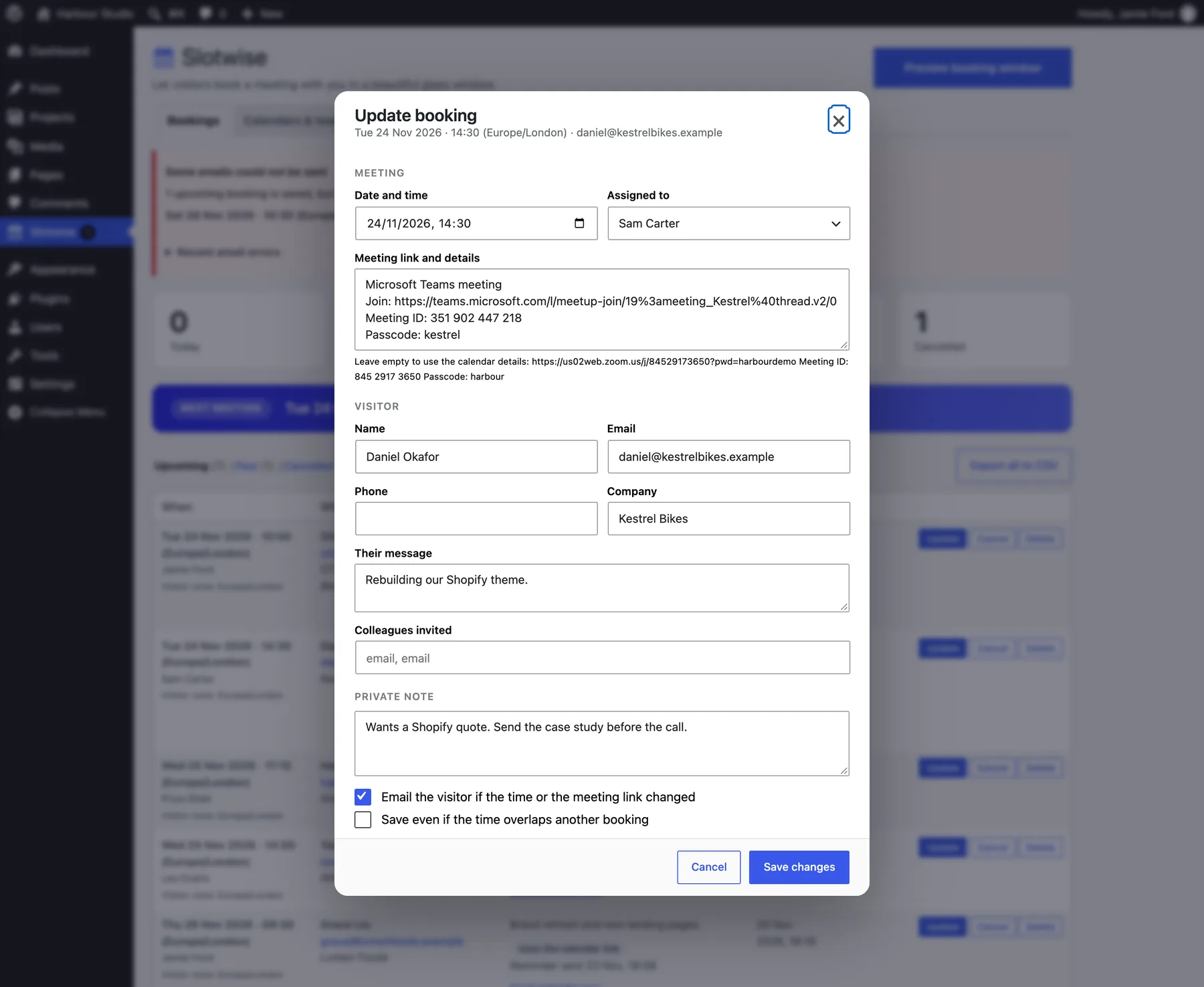
Update a booking
Need to move a meeting or add a Teams or Zoom link? Update opens a panel where you can change the date and time, who it is assigned to, the meeting link and joining details (paste a whole invite including meeting ID and passcode), the visitor’s details, and a private note only you can see. Tick one box to email the visitor the new details.
Bookings without a meeting link show an amber “No meeting link yet” chip, so nothing slips through. If an email ever fails to send, a red panel tells you which one and offers a Resend emails button:

Calendars and teams
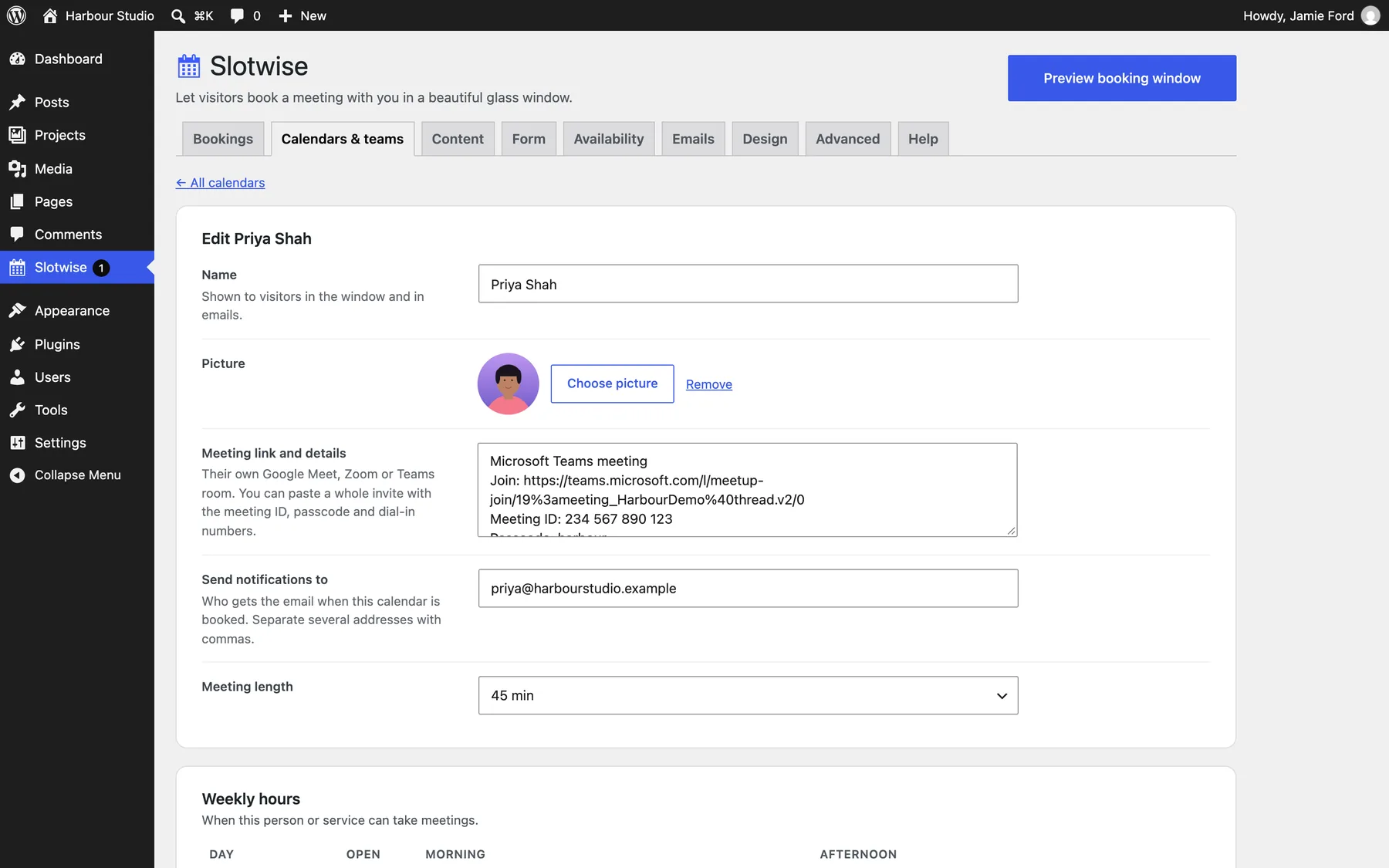
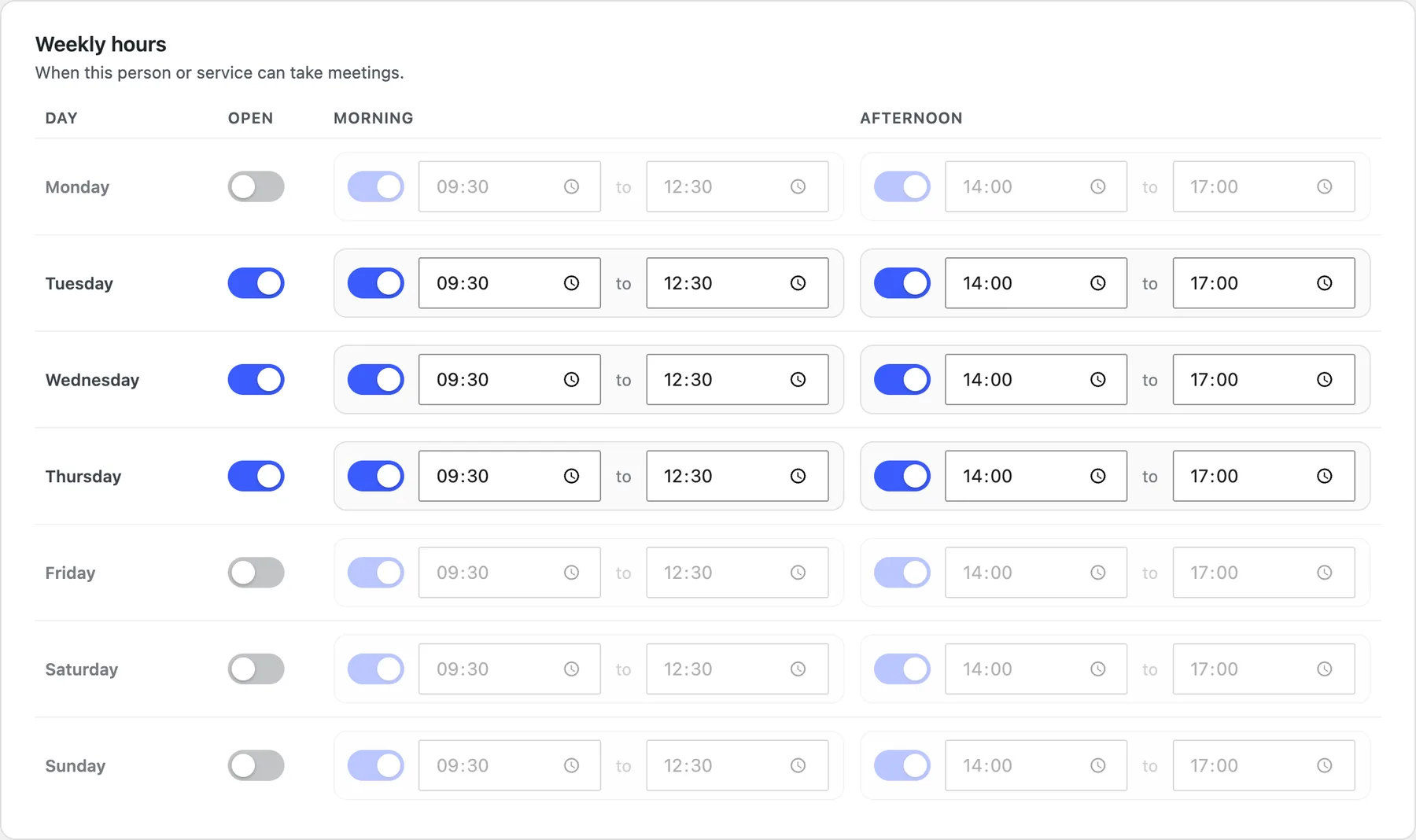
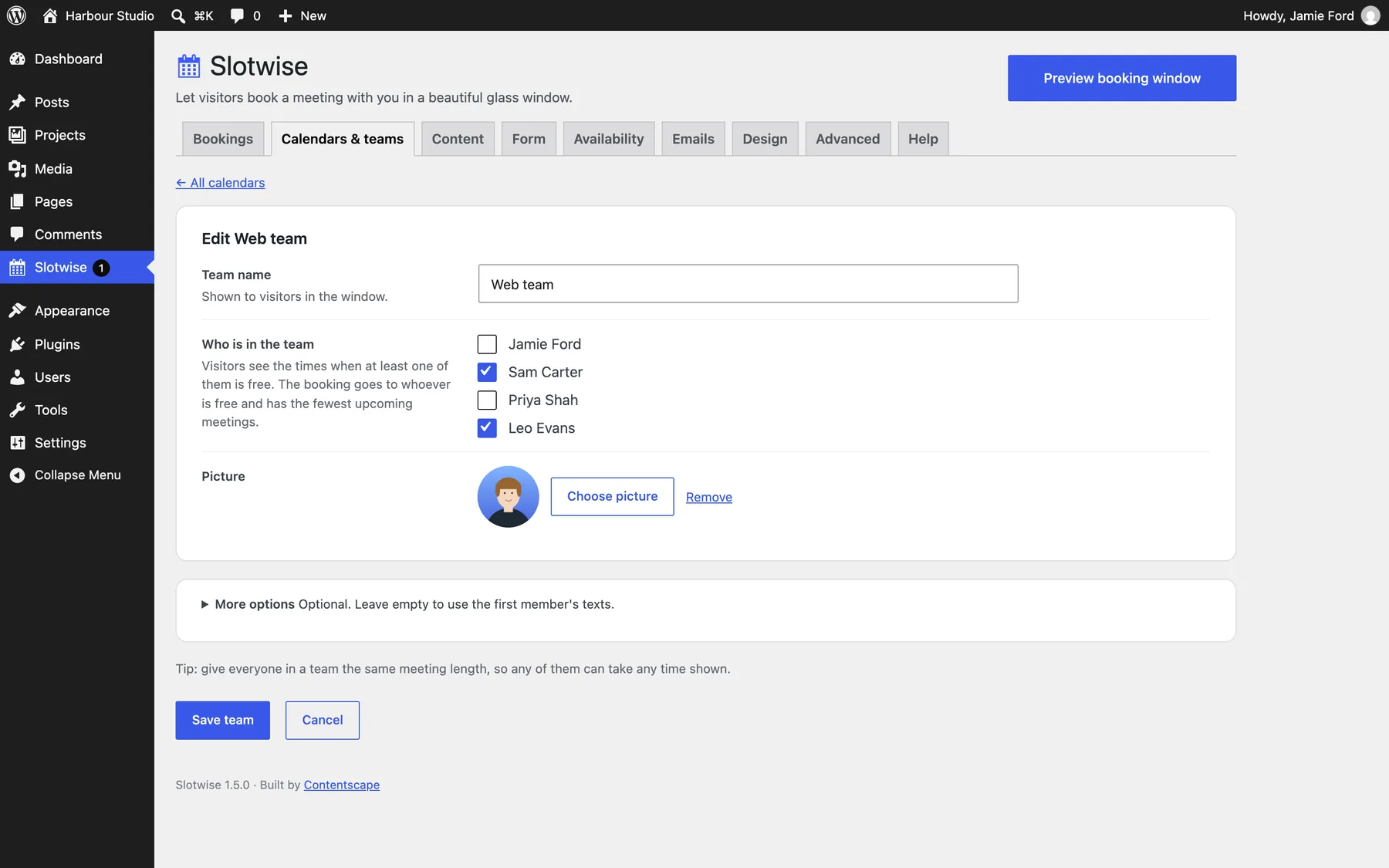
Give each person or service their own calendar with their own hours, photo, meeting link, meeting length and notification address. Group people into a team and visitors see every time when at least one person is free; the booking goes to whoever has the fewest upcoming meetings.
Content: change every word
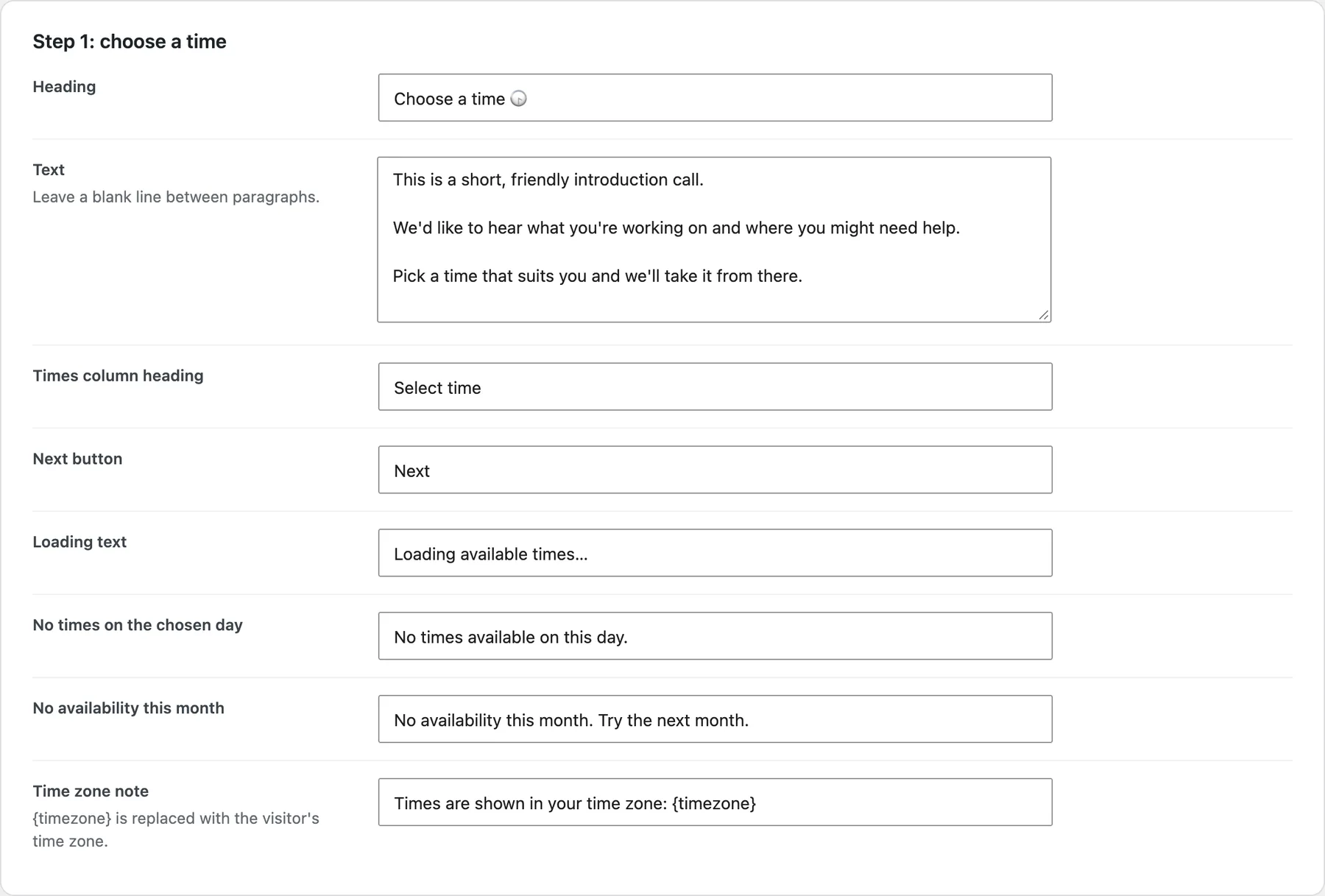
Nothing the visitor reads is fixed. The Content tab holds every heading, paragraph, button label and message, so you can match your tone of voice or translate the window completely (Slotwise is translation-ready too).
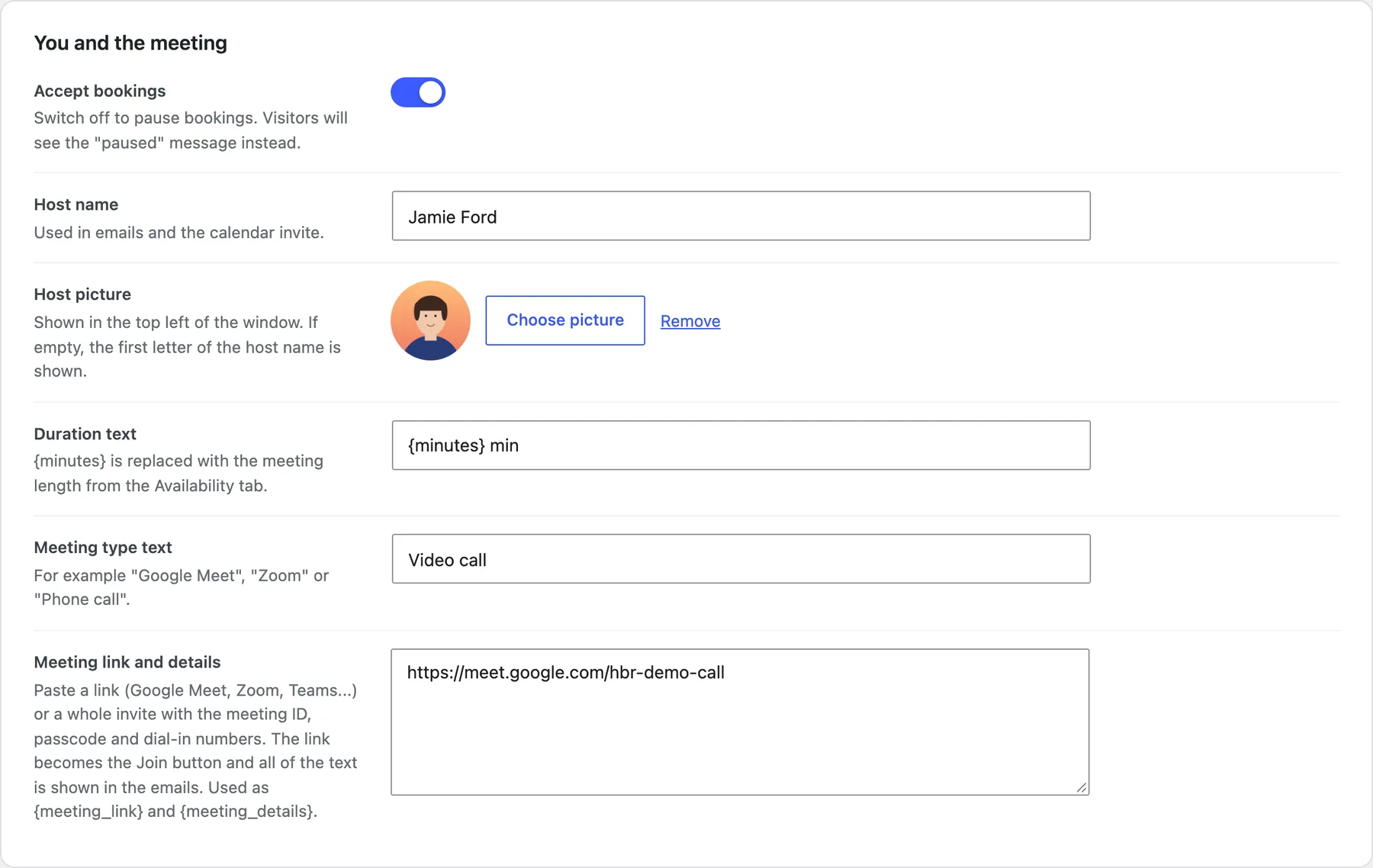
The meeting link box accepts either a simple URL or a whole invitation. The link becomes the Join button and everything else is shown in the emails.
The booking form
Decide exactly what you ask. Each field (name, email, phone, company, message) can be shown or hidden and made required, and you can change its label and placeholder. Name and email are always on, because a booking needs them.

Beyond the standard fields you can add two questions of your own and an optional consent checkbox (useful for GDPR wording), and control the colleague invitation:
Availability and booking rules
Set the days and hours you take meetings, with a morning and an afternoon range for each day so lunch is never booked. Anything outside those hours is simply not offered.

Booking rules keep your diary sane:

- Minimum notice stops last-minute surprises (for example 12 hours).
- Book up to limits how far ahead people can book.
- Most meetings per day protects your focus time.
- Gap between meetings gives you time to breathe.
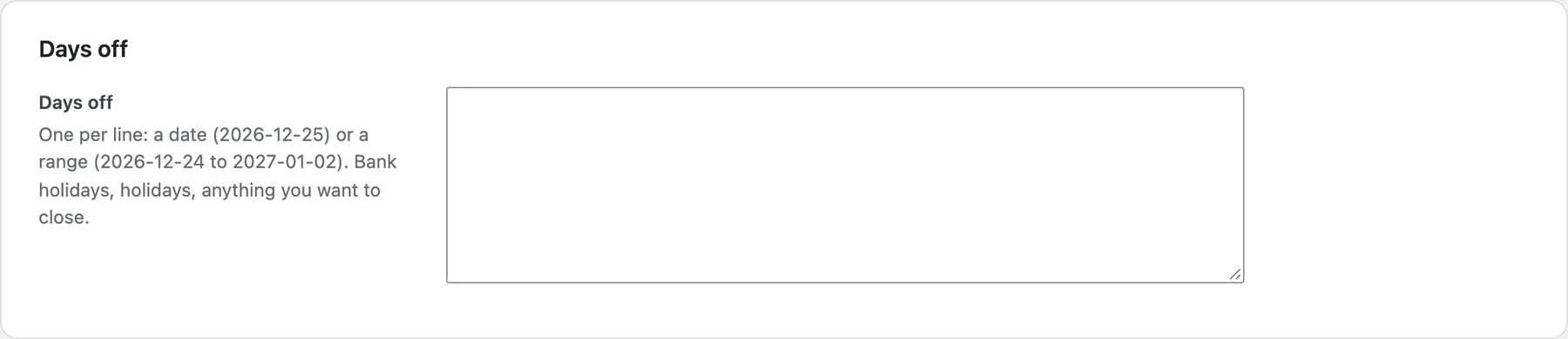
Add days off for holidays, one per line as a single date (2026-12-25) or a range (2026-12-24 to 2027-01-02), and those dates disappear from the calendar. Slotwise also prevents double bookings, even if two people click at exactly the same moment.
Emails and reminders
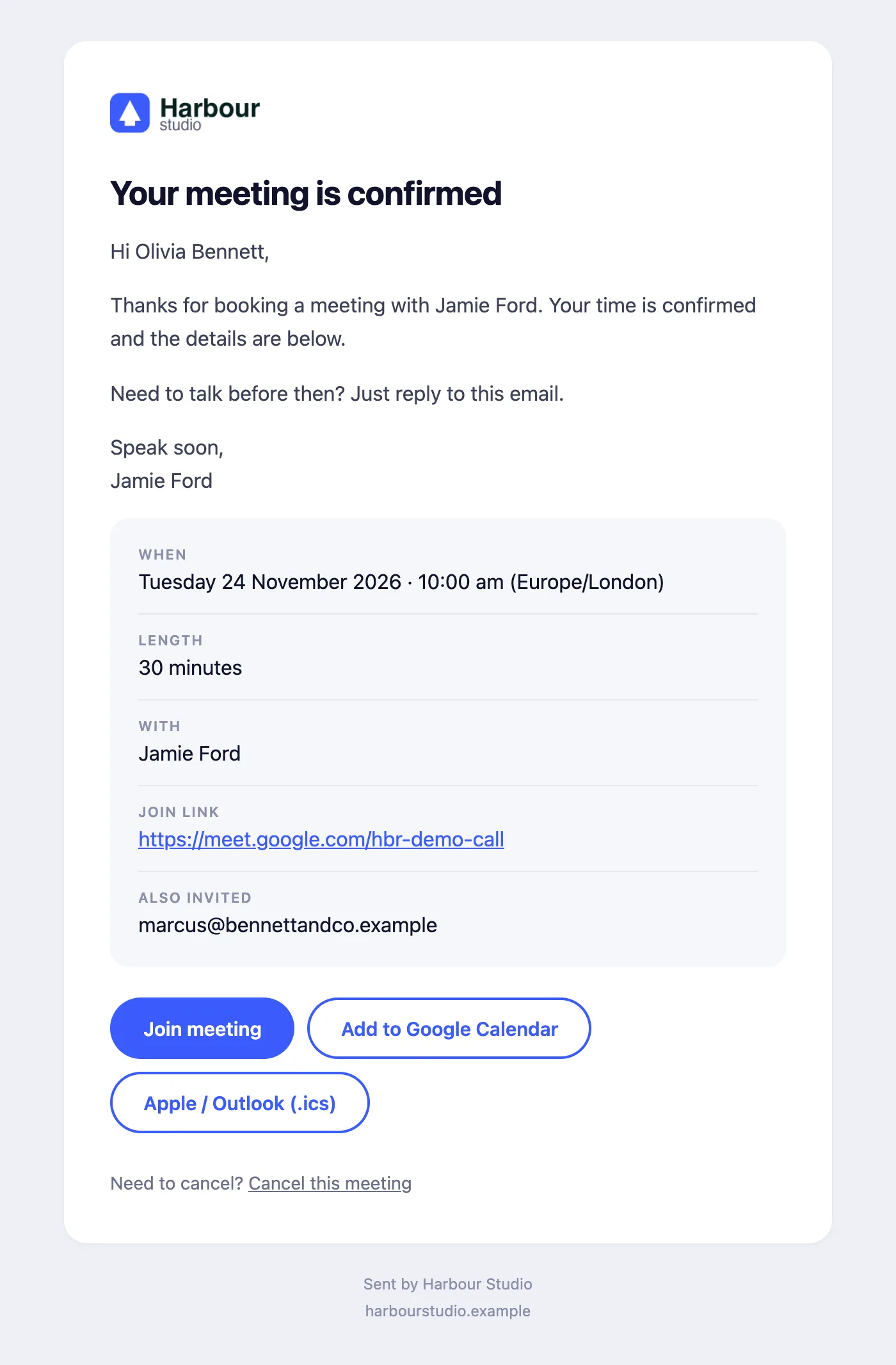
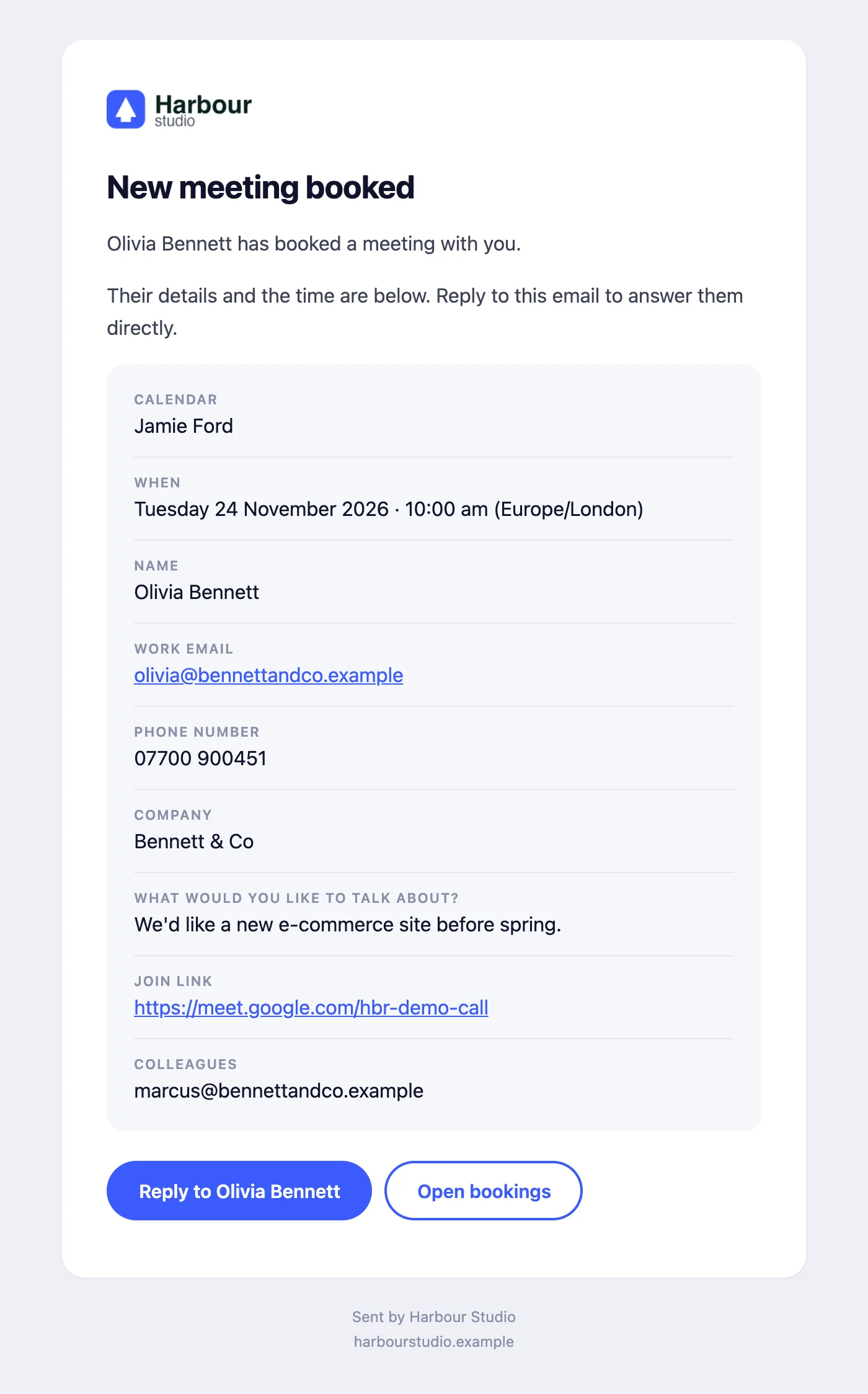
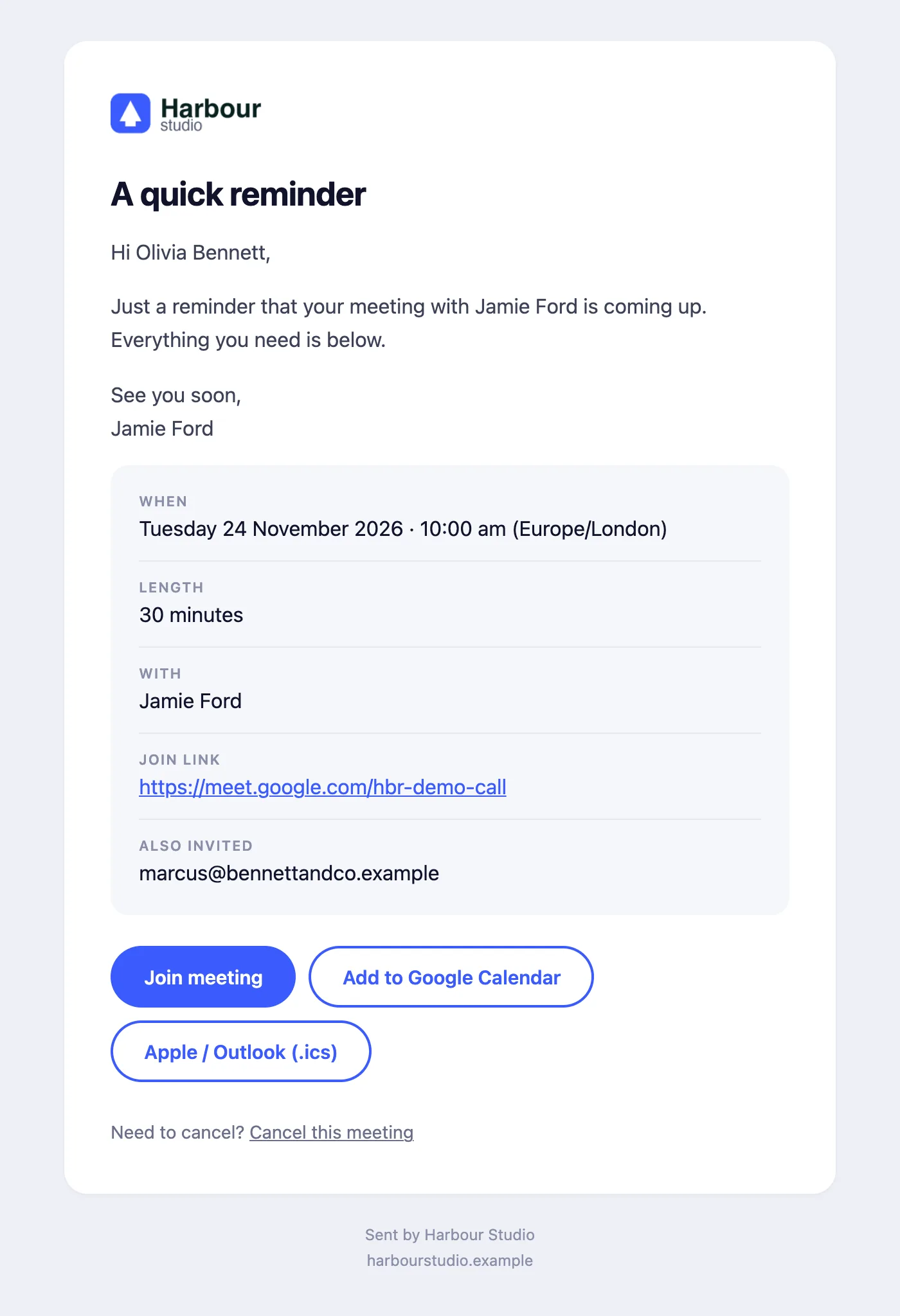
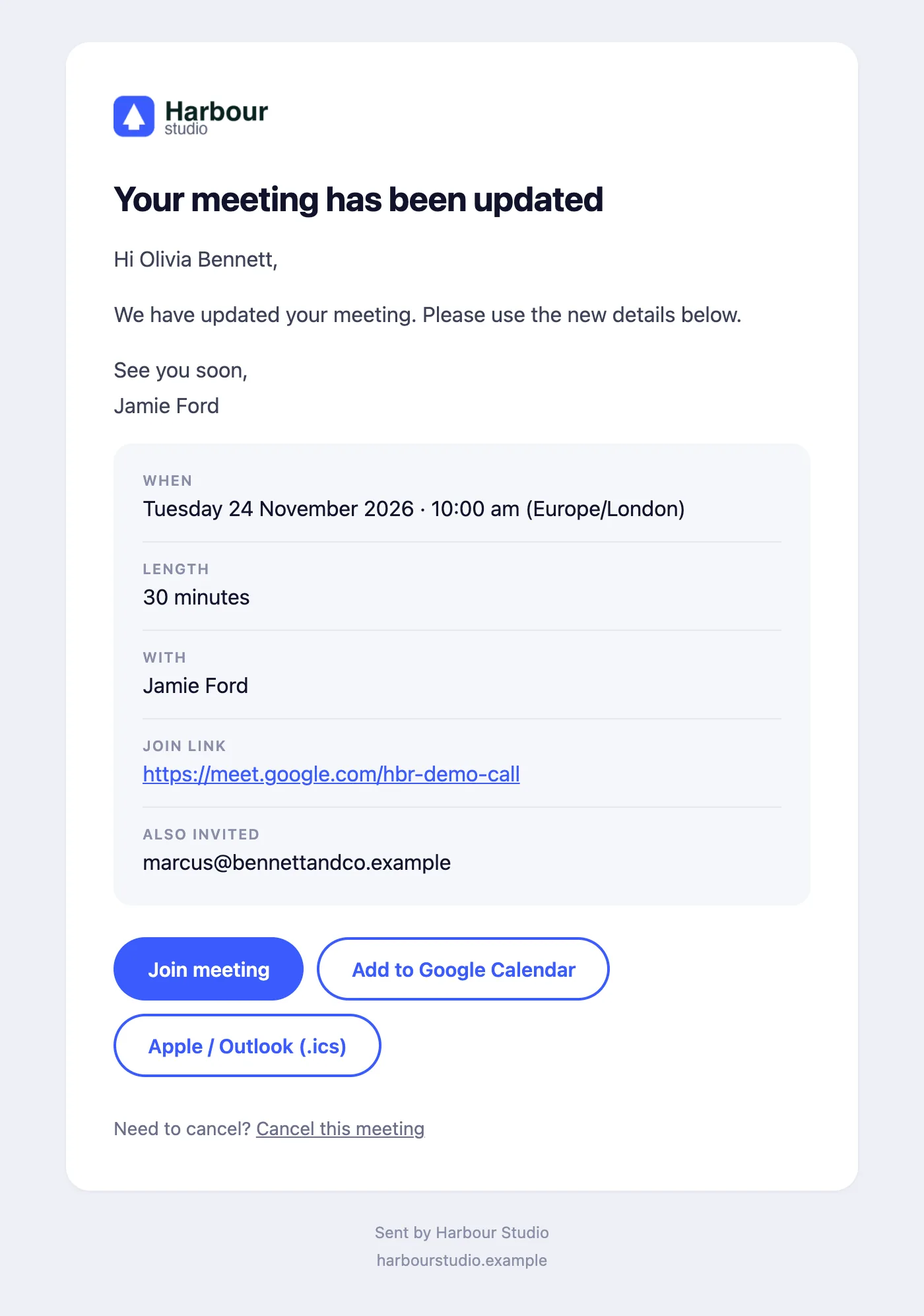
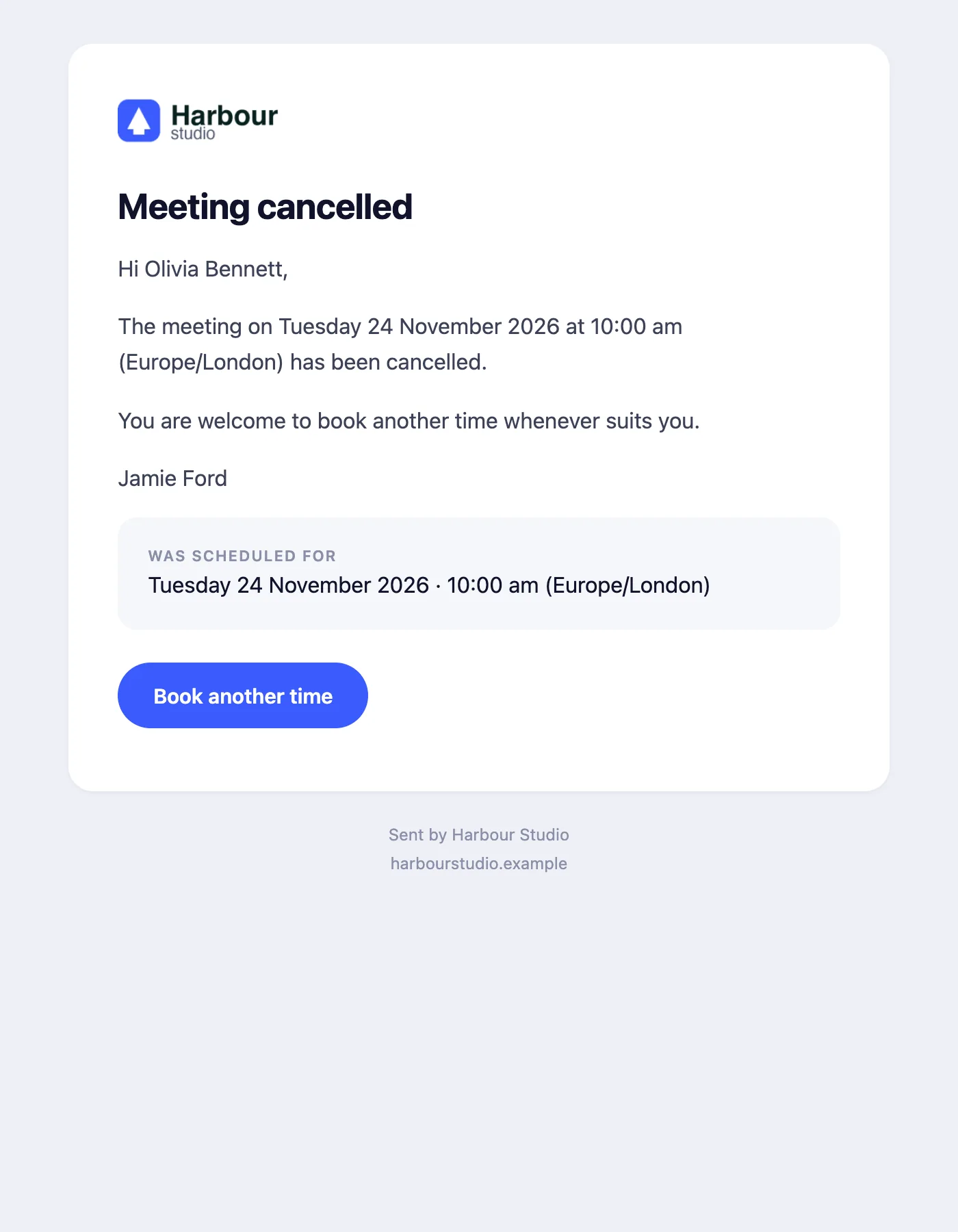
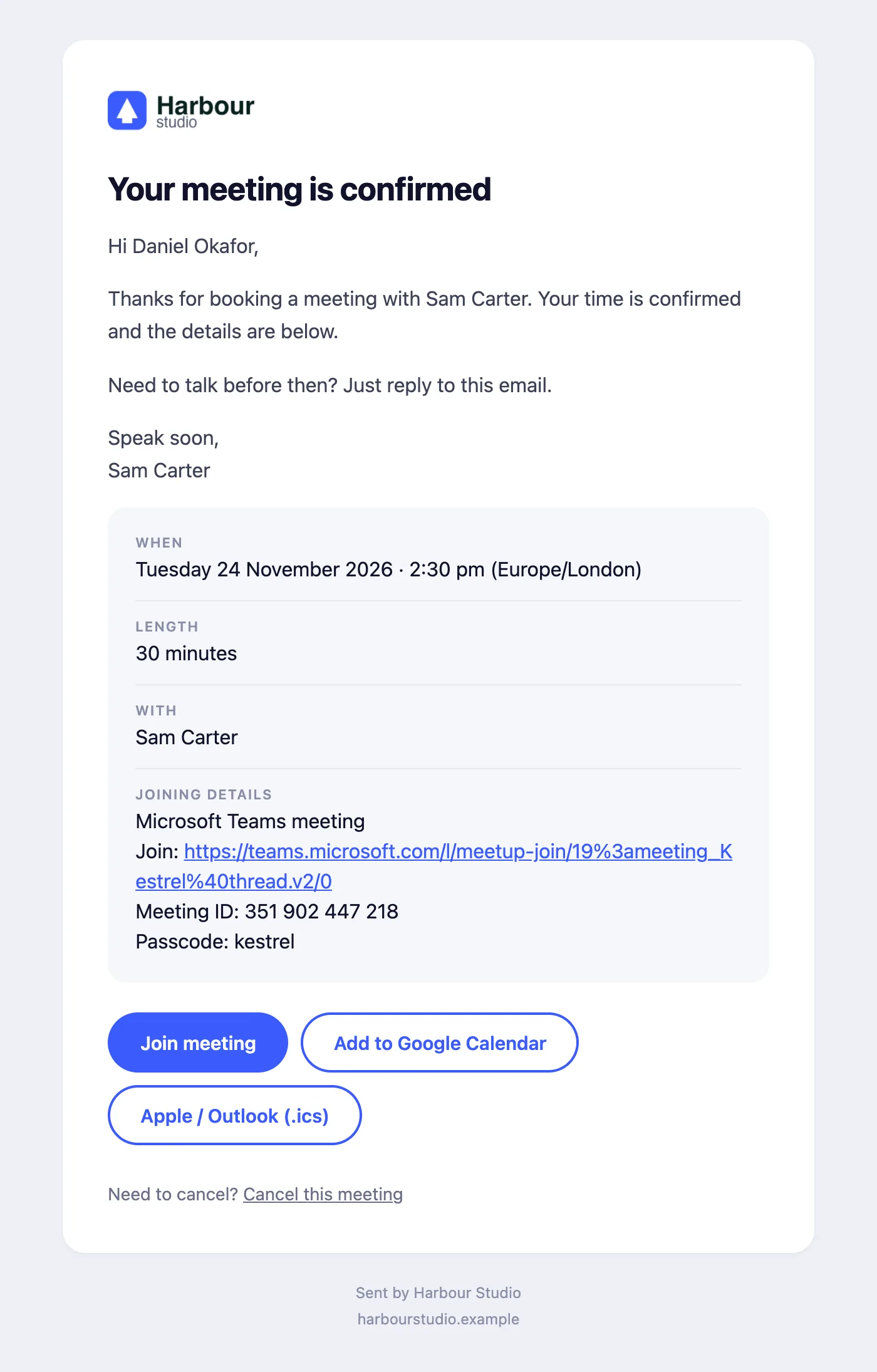
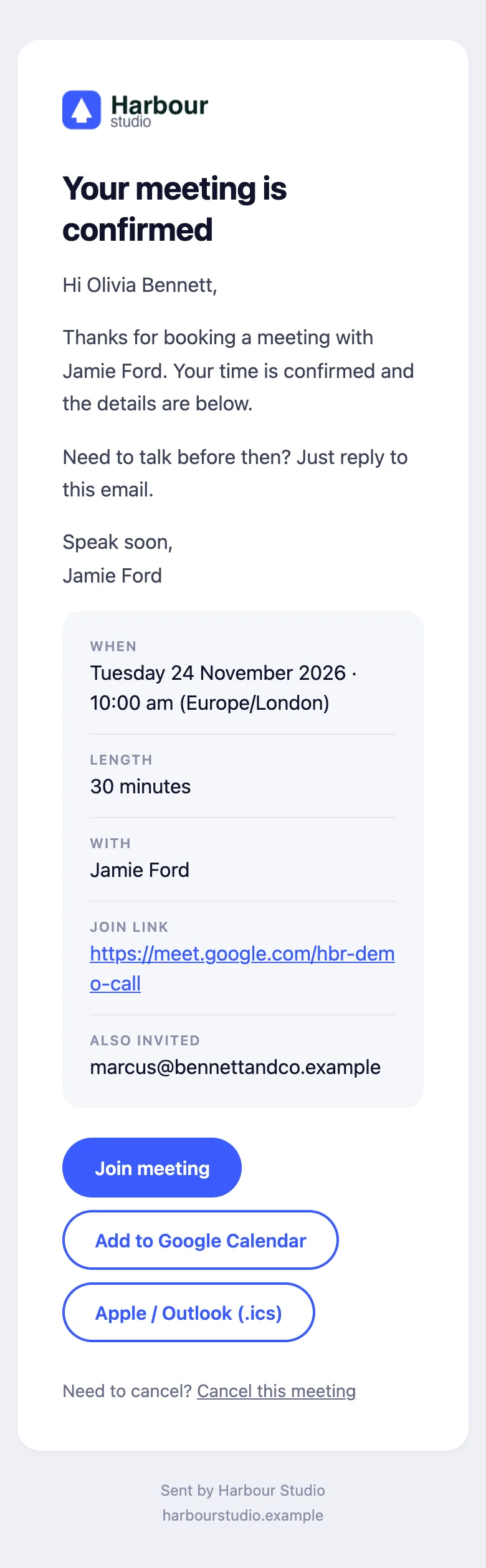
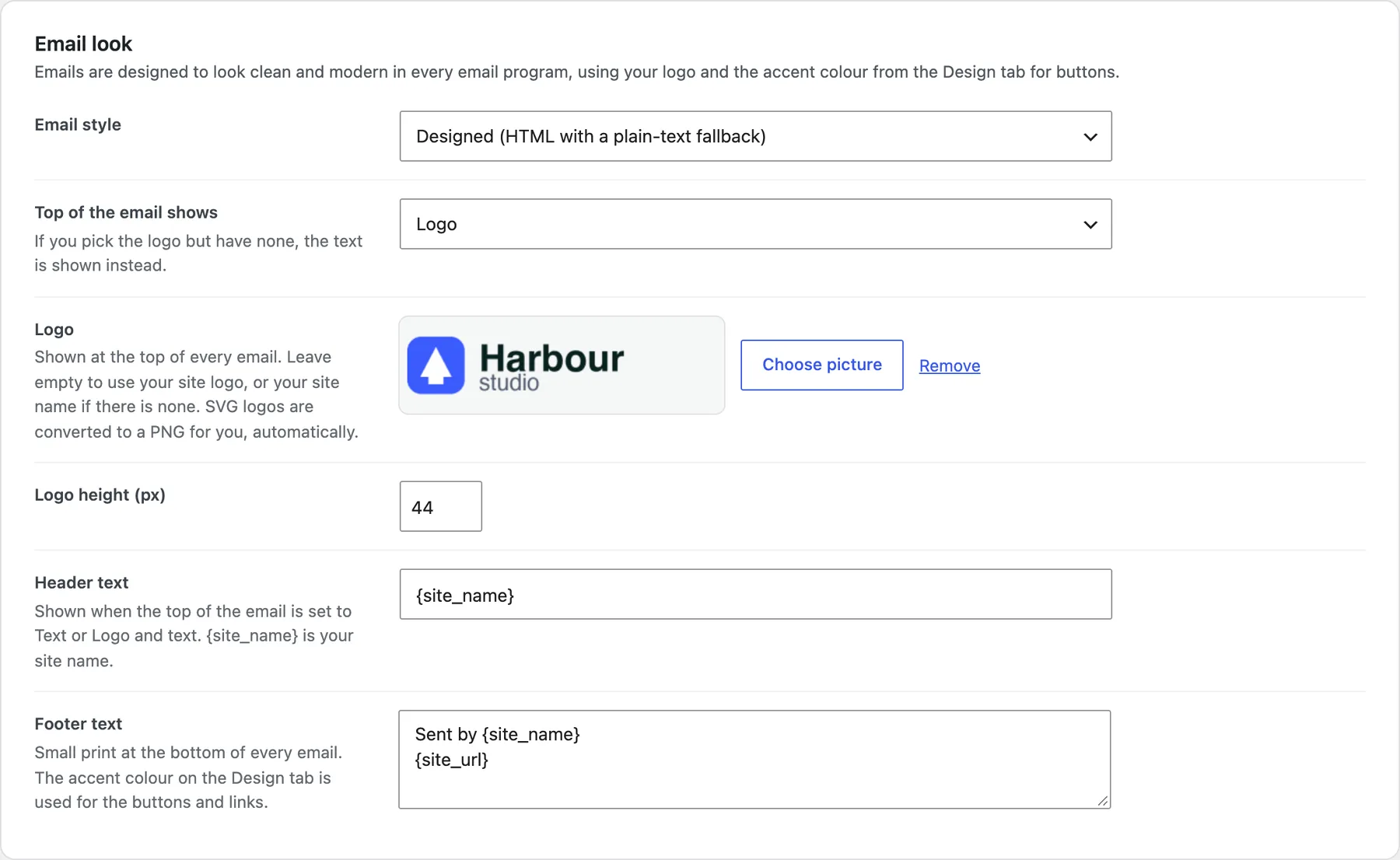
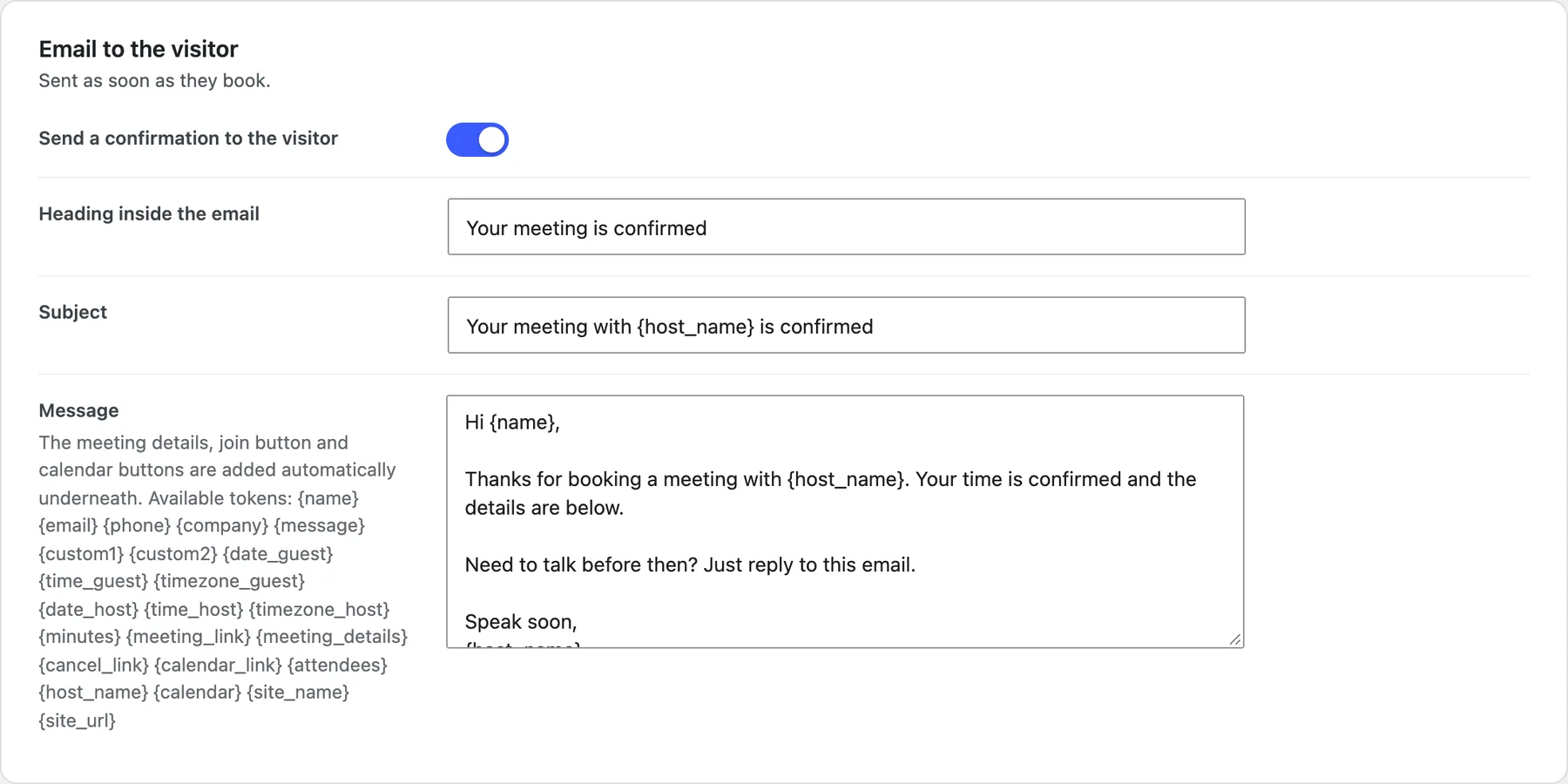
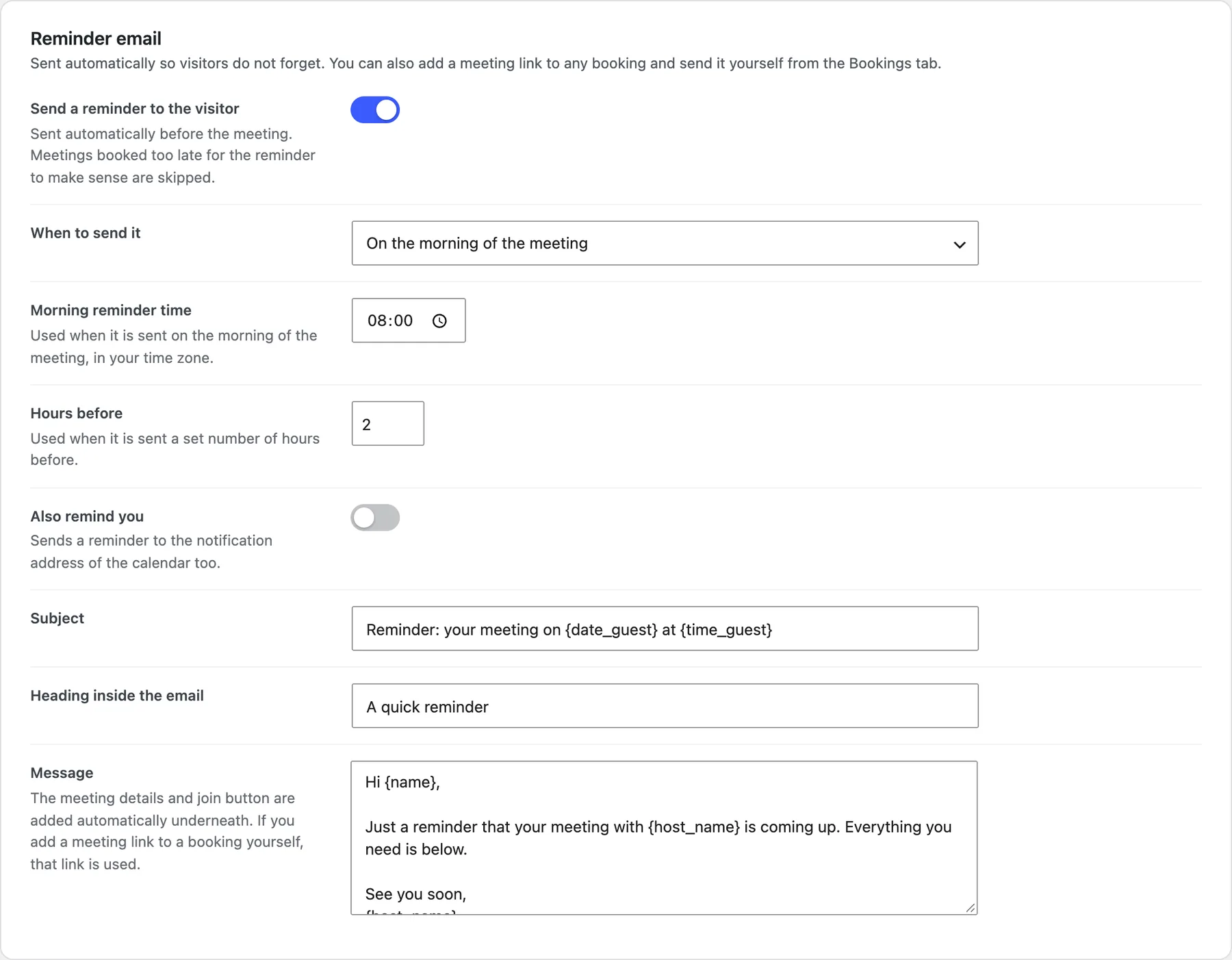
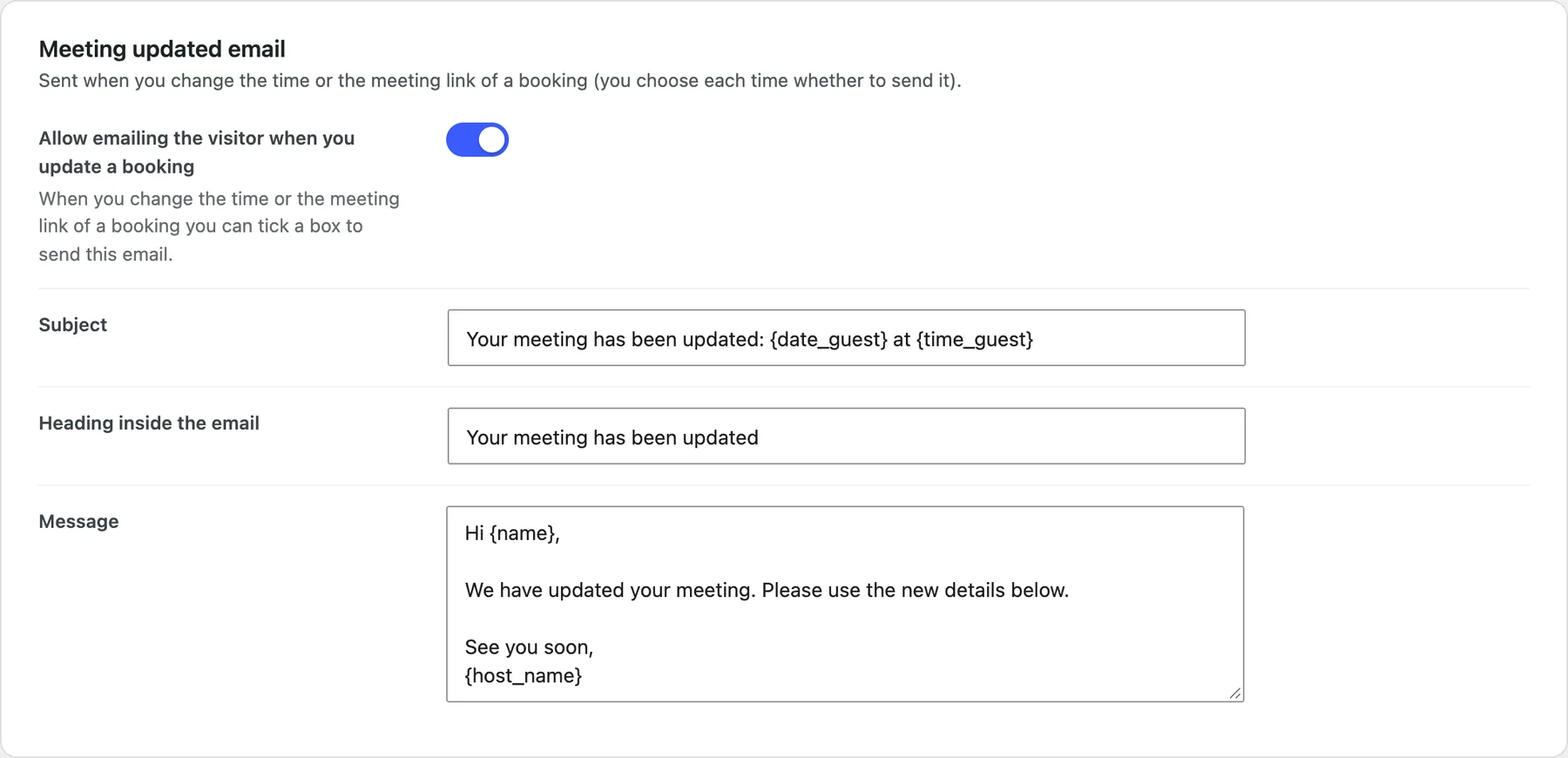
Slotwise sends clean, designed emails that look right in Gmail, Outlook and Apple Mail, with a plain-text fallback. Use the Preview tabs to see exactly what visitors and you will receive, using your latest saved settings.
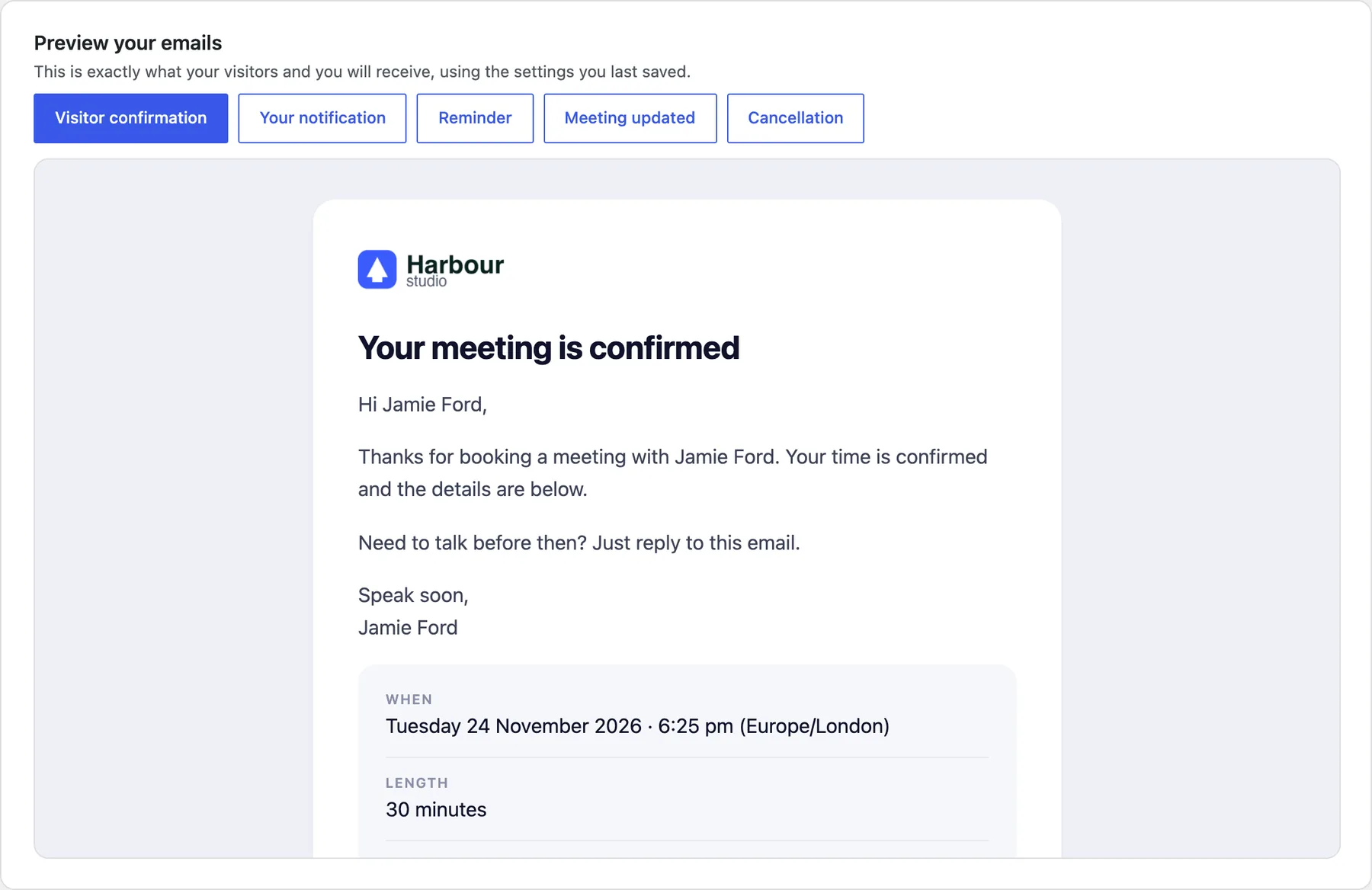
The confirmation
Your notification
Reminder, update and cancellation
Teams, Zoom and Google Meet details
Paste a full Microsoft Teams, Zoom or Google Meet invitation and the link becomes the Join button, while the meeting ID, passcode and dial-in numbers appear underneath.
Make them yours
Design: seven glass styles
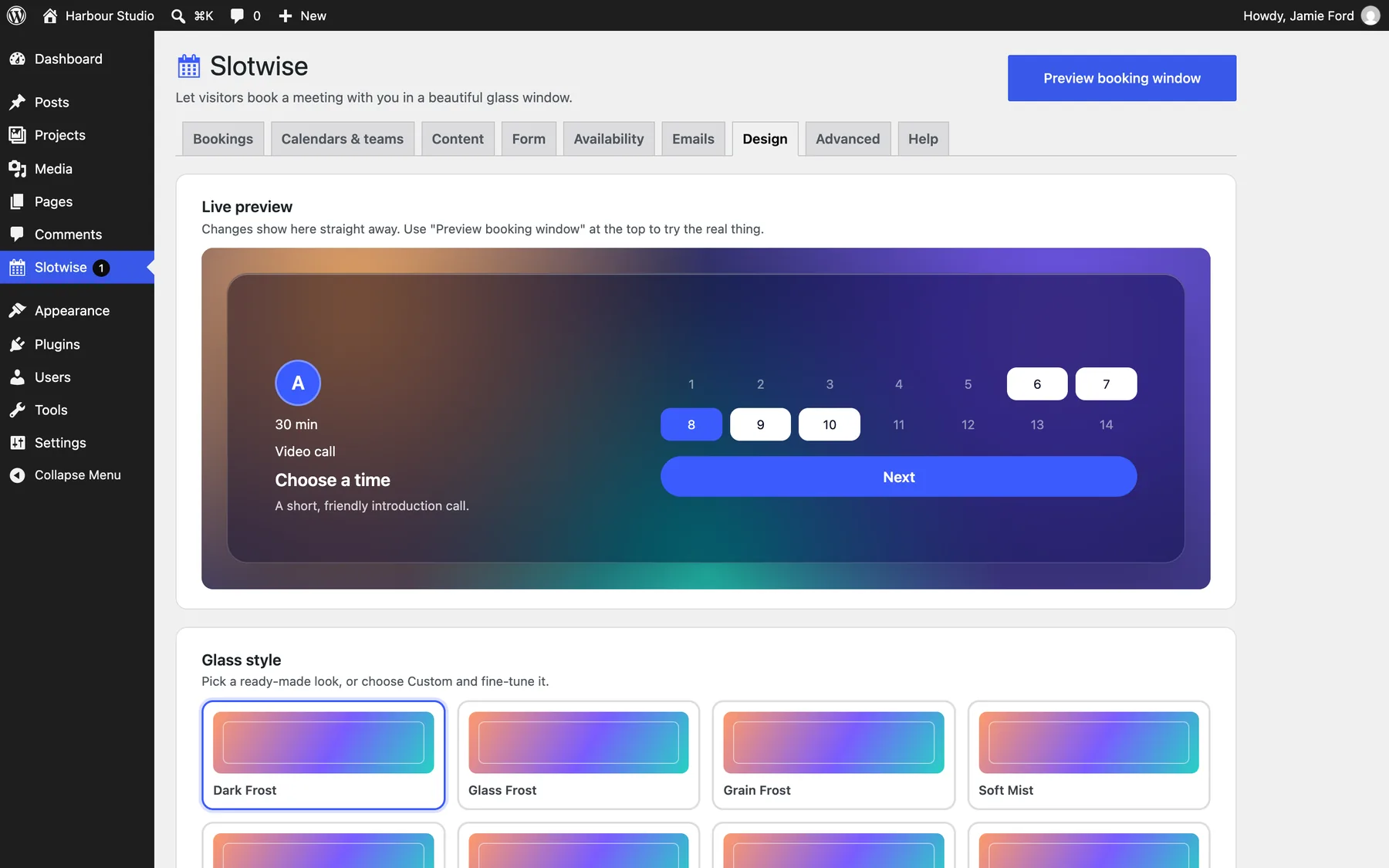
The window is built with a modern “liquid glass” look: frosted blur, soft light edges and a hint of grain. Pick a ready-made style, then fine-tune colours, blur and shape if you like.
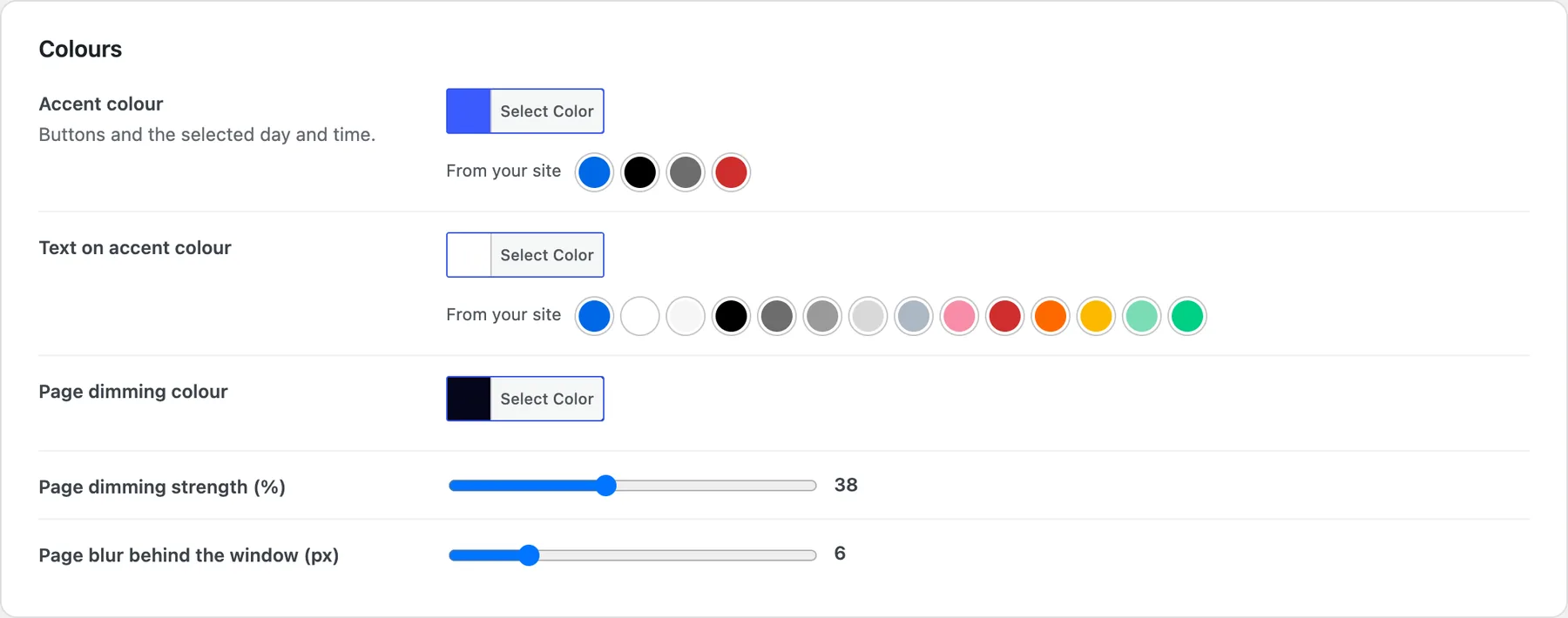

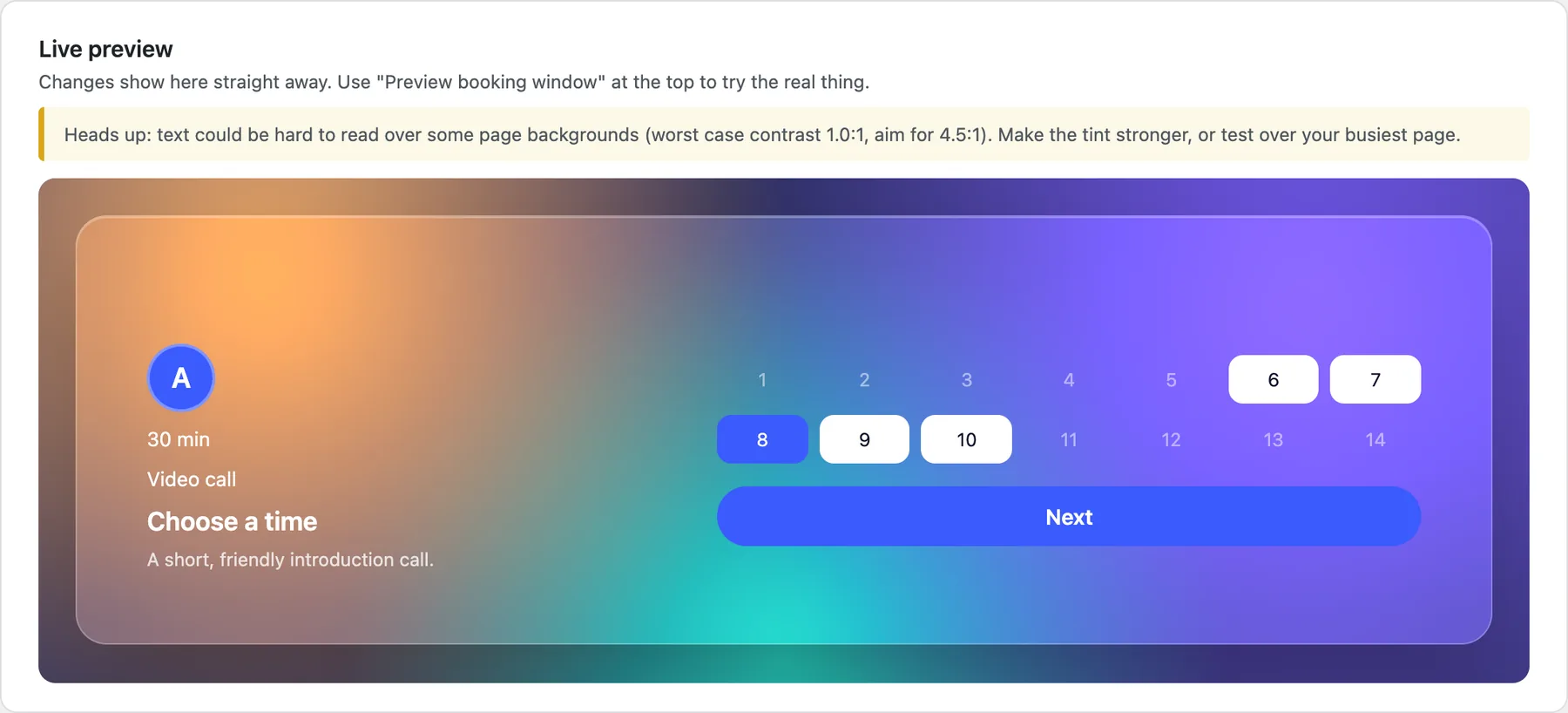
Slotwise watches readability for you. If a combination would make text hard to read over your page, it says so before you publish:
Advanced, protection and help
Slotwise is quiet and light by default. By default the booking window is loaded only when someone opens it, so it adds almost nothing to your page speed. In Advanced you can change that, set limits and tell Slotwise how to read visitor addresses behind a proxy such as Cloudflare.
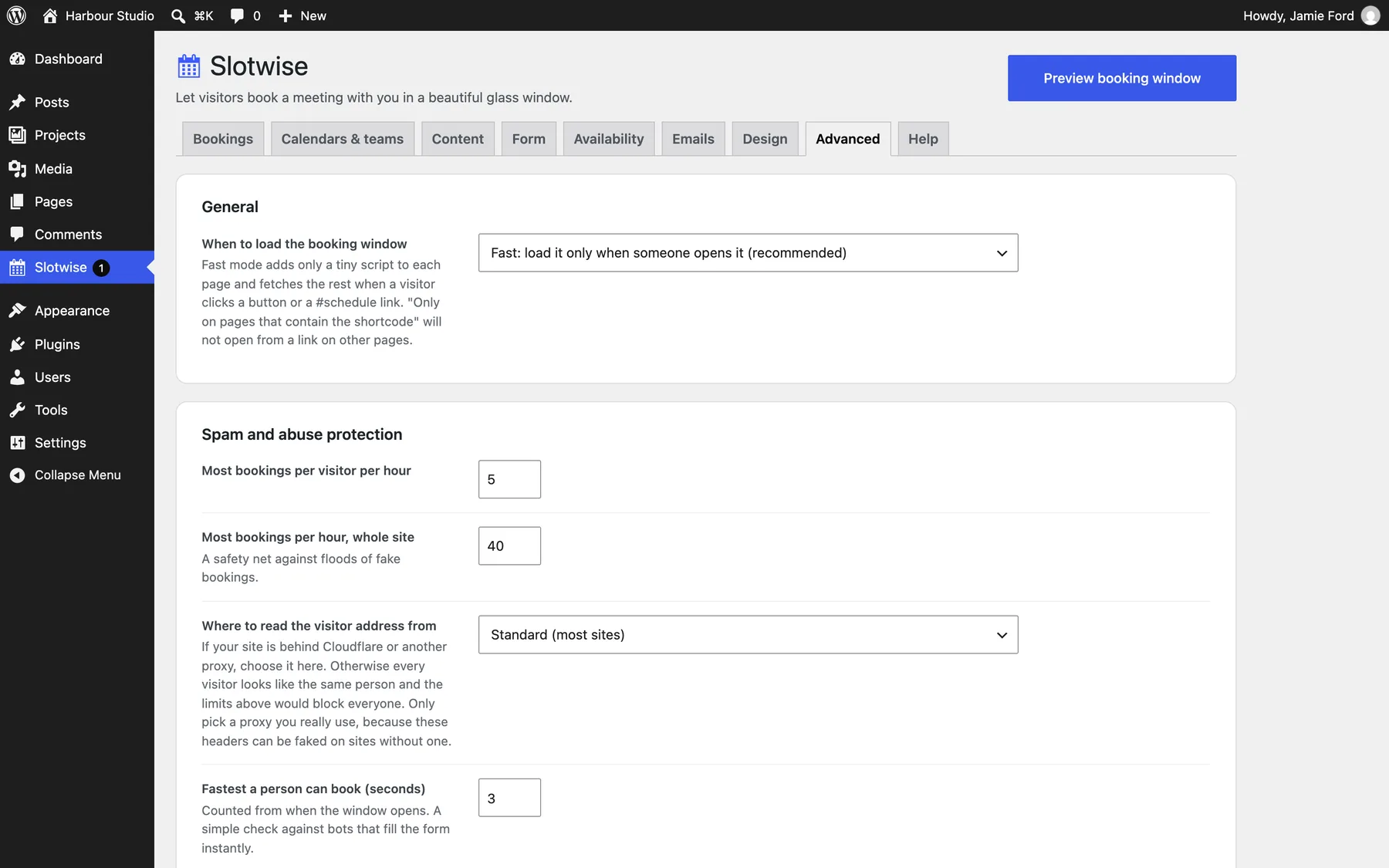
- Hidden honeypot field and a minimum time to fill in the form catch simple bots.
- Limits per visitor and for the whole site, per hour and per address, stop floods of fake bookings.
- Per-address limits mean the colleague field cannot be used to spam someone.
- Privacy tools: bookings appear in WordPress’s Export and Erase personal data screens, and old bookings can be purged automatically.
The Help tab explains the shortcode and link options and has a one-click button to email us with your versions pre-filled.
Try it before anyone else does
Press Preview booking window at the top of any Slotwise screen. A yellow bar reminds you nothing is booked or emailed while you test.
Questions
Is Slotwise really free?
Yes. It is released under the GPL, which means you can use it on any number of your own or your clients’ sites.
Does it connect to Google Calendar or Outlook?
Visitors and you get a calendar invite (.ics file and an “Add to Google Calendar” link). Slotwise does not sync busy times from an external calendar, so keep your opening hours accurate.
Can I add Zoom, Teams or Google Meet links?
Yes. Paste a link or the whole invitation into a calendar or onto an individual booking.
Will it slow my site down?
No. By default the booking code is only loaded when someone opens the window.
Does it work with my page builder?
Yes. Use the shortcode or give any button the link #schedule. It works with WPBakery, Elementor, Gutenberg and others.
Are emails reliable?
Slotwise uses WordPress’s normal email system. For best delivery, connect an SMTP plugin such as WP Mail SMTP. If a message fails, Slotwise tells you and lets you resend.
Is it GDPR friendly?
Data stays in your own database, you can add a consent checkbox, and bookings are included in WordPress’s personal data export and erase tools. You remain responsible for your own privacy policy.
Where do I get help?
Email [email protected] and tell us what you expected to happen.
Download Slotwise
Ready to give it a go? Download the plugin, upload it in WordPress and you will be taking bookings in minutes.
Version 1.5.0 · needs WordPress 6.0+ and PHP 7.4+ · free, GPL licence
Built by Contentscape, a web, brand and marketing agency. If you would like help setting it up or want a website built around it, get in touch.


Leave a Reply